
Fetching, pulling & pushing
Pull
Three modes, picked from the dropdown: default, fast-forward only, or rebase. Local changes are auto-stashed and restored around the pull, so a dirty tree does not block you.
A branch that tracks nothing
git pull is a fetch followed by a merge, and the merge needs to know what to
merge into — the branch's upstream. A branch you created locally, or one checked
out without tracking, has none. The fetch still succeeds, a long list of updated
origin/* refs scrolls past, and then git stops with "There is no tracking
information for the current branch". Nothing was pulled and nothing was broken:
the second half simply had no target.
Gitcito reads that error and offers the repair as a button, picking which one from whether the remote already carries the branch:
| It is on the remote | Link & pull — sets the upstream to <remote>/<branch>, then runs the pull you asked for. Undoable with ⌘Z, which unsets the tracking again. |
| It is not there yet | Push branch — an ordinary push, which sets the upstream as it goes. |
The remote offered is origin when there is one, otherwise the first in the
list. Which case you are in is read from the remote-tracking refs rather than
the network, so the answer reflects the fetch that has just run.
Push
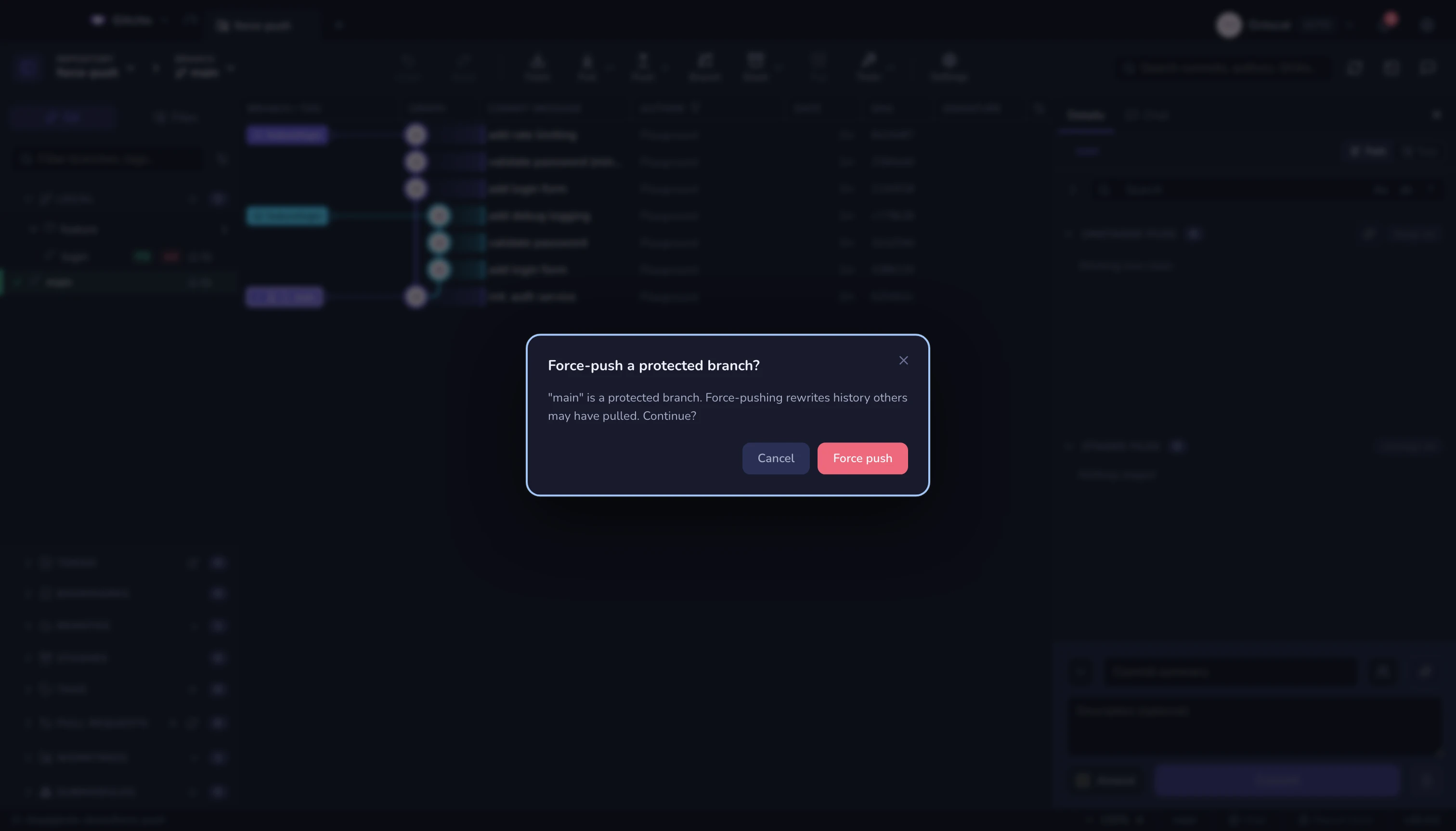
Force pushes always use --force-with-lease — the safe variant that refuses if
the remote moved since you last looked. Pushing a protected branch with force
asks for confirmation (list in the repo-settings gear).
No remotes
Push, pull and fetch need somewhere to go. A repository with none — a fresh
git init, a clone whose origin was removed — used to make those buttons do
nothing, or succeed with an empty fetch. They now open Add remote instead,
with a warning, so you can paste a URL or create the repo on the host. Adding
it finishes the action you started: a push publishes the current branch, a
pull fetches then pulls, a fetch just fetches.
Background auto-fetch stays quiet when there is nothing to fetch. It does not open a dialog on a timer.
More than one remote
The Push button targets the branch's upstream. The arrow next to it also offers, once a repository has more than one remote:
| Push to one remote | Pick a single remote — a fork, a mirror, a deploy target |
| Push to all N remotes | One push per remote, in order |
| Push all tags to | git push <remote> --tags, every local tag at once |
The same two actions sit on each remote's own row in the sidebar, which is usually where you are when the question comes up.
A rejection does not cancel the rest. Pushing a fork and its upstream is exactly the case where one side refuses and the other should still go through, so each remote reports separately: successes are named in one toast, and each failure gets its own with git's reason.
Only the first remote in the list sets the branch's upstream. A branch has one upstream, and the last remote pushed to is not automatically the one you want it tracking.
Both paths run the same checks as an ordinary push — the protected-branch confirmation and the secret guard. Publishing to two remotes is twice the exposure, not half the caution.
Branches you are not standing on
git pull only ever moves HEAD, which is why most clients make you check a
branch out before you can catch it up. Gitcito does not: right-click any local
branch — in the sidebar or on its badge in the graph — and you get
Pull
Pull <branch> |
Fast-forwards the local ref from its upstream, without a checkout. The working tree is not touched. Undoable with ⌘Z — the undo puts the branch back where it was. |
Push <branch> |
An ordinary push of that branch, with the same protected-branch and secret guards as the toolbar button. |
Pull is greyed out for a branch that tracks nothing — there is nowhere to pull from. On the branch you are on, both fall back to the normal pull, which updates the working tree too.
The limit worth knowing: a branch that has diverged from its upstream is refused, with a message saying so. Reconciling a divergence is a merge or a rebase, and both need a working tree — so that one still costs you a checkout. Force-pushing a branch you are not on is offered when the remote rejects the push, but the pull-and-retry route is not, for the same reason.
Fetch
Fetch has its own toolbar button, next to Pull. It fetches every remote and
prunes, so your origin/* refs and every ahead/behind count go current — and it
touches neither your branch nor your working tree. That is the one to reach for
when you want to see what everyone else has done without moving your own work.
There is also background auto-fetch on an interval you set (Settings →
General). Hover the Fetch button and the age fades in underneath it — 4m ago —
in amber once a fetch is more than fifteen minutes old. It never takes up room
in the toolbar, because it answers a question you only ask while reaching for
the button. It is read from FETCH_HEAD, so a git fetch run in a terminal
counts the same as one run here.
A fetch that finds rewritten history says so: a toast names the branch, and its row gains a marker that opens what changed since at exactly the commit it used to point at.
Many repositories at once
- A group tab can Fetch all / Pull all its whole subtree.
- Mission control does it across the workspace, and can pull only the repositories that are actually behind.
Remotes
Add, edit, remove and fetch individual remotes from the sidebar. Branch rows carry per-remote presence badges, so you can see at a glance which remotes have a copy of a branch.
Fetch, pull or push with no remotes opens that same Add remote dialog, instead of succeeding at nothing. See fetching, pulling & pushing.
See also: Mission control · Hosting & pull requests