
Repositories
Mission control answers "which of my open repositories needs me?" It only knows about the active workspace's tabs. Repositories answers a different question: where is that repo, and is it even open anywhere? It covers everything Gitcito has ever seen — every workspace, every tab, plus whatever it finds by scanning folders you point it at.
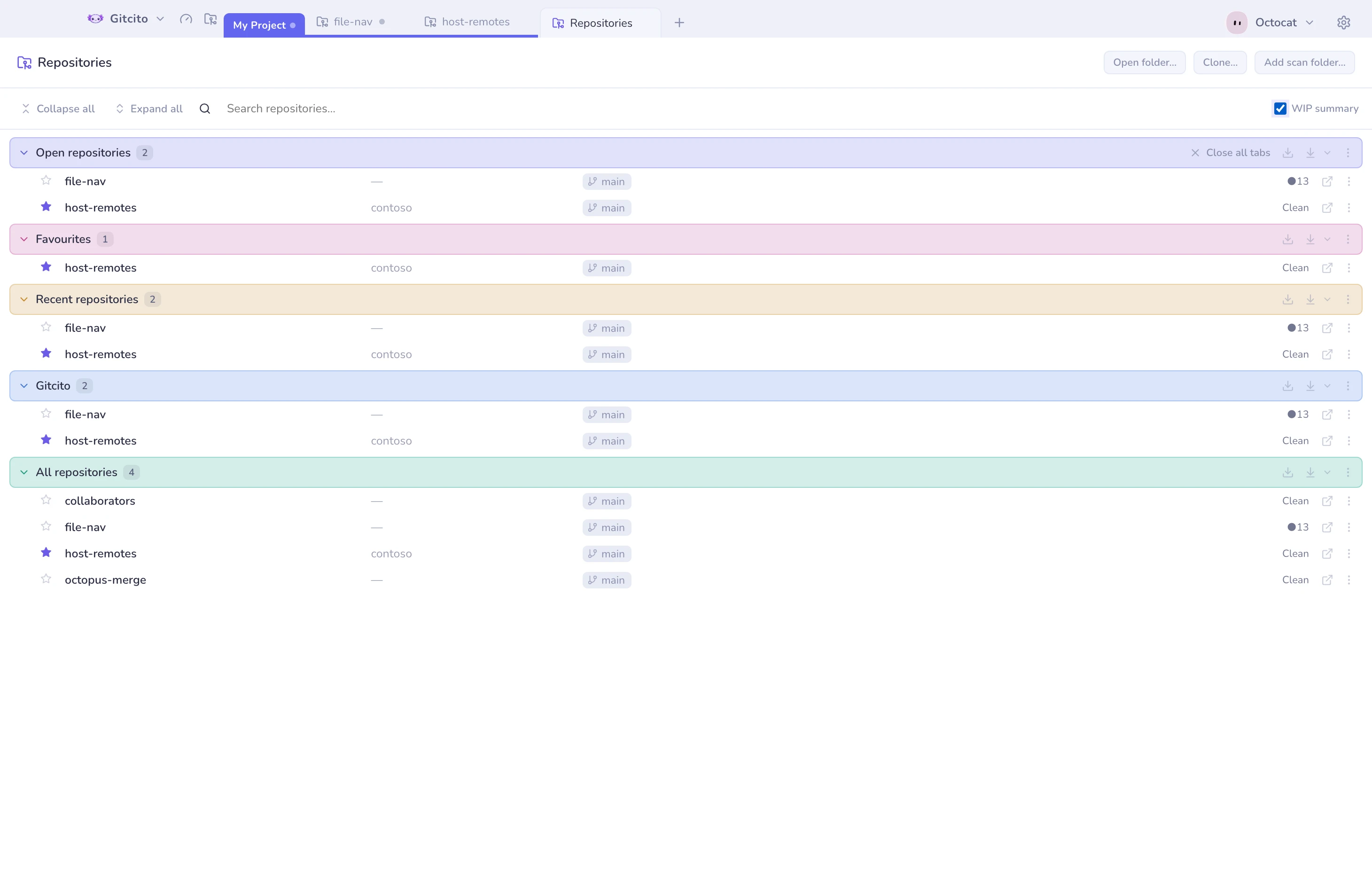
The sections
A repository can appear in more than one section — deliberately, so each section is a complete answer to its own question rather than a partial slice of a single list.
| Section | What is in it |
|---|---|
| Open repositories | Every tab in the active workspace right now |
| Favourites | Starred repositories, across every workspace |
| Recent | Everything you have opened, newest first — uncapped, unlike the 8-entry recent list in the launcher |
| One per saved workspace | That workspace's tabs, so you can jump into a different workspace without switching to it first |
| All repositories | Every repository the registry knows about, open or not |
The toolbar above the list is one strip: Collapse all and Expand all, then a search field that takes the rest of the width, then the WIP summary toggle.
Search filters rows across every section at once, and hides the sections that match nothing so the results are not buried under a column of empty headings. Match a repository's name, its alias, its owner or any part of its path. When nothing matches anywhere, the page says so instead of going blank.
With the box empty, every section is shown even when it holds nothing: "Favourites 0" is telling you the section exists and is empty, which is worth knowing. That is only noise once you are searching.
Section colours
Sections arrive already coloured — each header gets its own tint from the standard palette, including a new workspace the moment it appears. The point is orientation, not decoration: with a workspace section per project and five built-in sections above them, a scrolled list stops telling you where you are, and a tint makes a header recognisable before you have read it.
To change one, use the ⋮ on its header: Change colour… opens the same colour picker used for group tabs and folders — ten preset swatches plus a free hex value. Reset colour appears once you have overridden a section, and puts it back to its assigned default.
Three things worth knowing:
- The assignment is stable, not random. The same sections get the same colours on every launch, and adding a workspace never recolours the sections above it. Only the colours you change are stored.
- The colour is page-local. Tinting a workspace's section here says nothing about that workspace anywhere else in Gitcito — its tab colour is a separate setting.
- The colour is mixed down to a low percentage of the surface rather than applied at full strength, so a saturated pick stays a readable background in both light and dark themes. A very pale colour will therefore look almost neutral.
With more than ten sections the palette repeats, so two headers can share a tint.
What makes a repository known
A row exists here once Gitcito has opened it at some point, or found it under a scan folder. Nothing is indexed just because it exists on disk somewhere you never told Gitcito about.
Opening this page also indexes whatever you currently have open in a tab, which is how repositories restored at startup get a row without your having to reopen them. It covers open tabs only, and it happens on the first visit of each session rather than once ever — so a repository you Forget stays forgotten unless you open it again.
Scan folders are configured in Settings:
- Depth is how many directory levels the scan descends below the root (default 3, capped at 10).
- Scanning stops at a repository — a vendored checkout or a submodule inside a repo is not indexed as its own row.
- It never enters dot-directories, and skips
node_modulesand similar dependency folders. - It reads folder names only: finding a
.gitdirectory is what makes something a repository here. Name, owner and branch come from files inside.git(HEAD, the config), never by runninggit.
Rows
Rows are laid out as columns — star, name (alias-aware, if you have renamed it), owner (parsed from the origin remote's URL), branch chip, WIP summary, and actions. The columns are shared by the whole page, not sized per section, so a name in the last section lines up under a name in the first one and the list reads as a table rather than a stack.
The trailing actions are shown at rest rather than revealed on hover: open in a tab, and a ⋮ that opens the same repository context menu as a right-click. That menu is the one used everywhere else in Gitcito, extended with two entries specific to this page:
| Action | What it does |
|---|---|
| Star / unstar | Adds or removes the repository from Favourites |
| Locate… | Re-points a moved or renamed folder — the repo's alias, profile binding, star and any tabs showing it all carry over. If the destination already had its own settings, the destination wins |
| Forget | Removes the entry from this list. Never touches the folder on disk |
A repository whose folder no longer exists shows as missing, with inline Locate… and Forget in place of the usual row actions.
When an open tab's folder goes missing
Tabs are restored at launch from the paths they had when you quit. If a folder has since been moved, deleted, or lives on a drive that is not plugged in, every read Gitcito made against it used to fail with its own error toast. Now the folder is checked first, and the tab shows Repository folder not found with the saved path instead of the usual workspace:
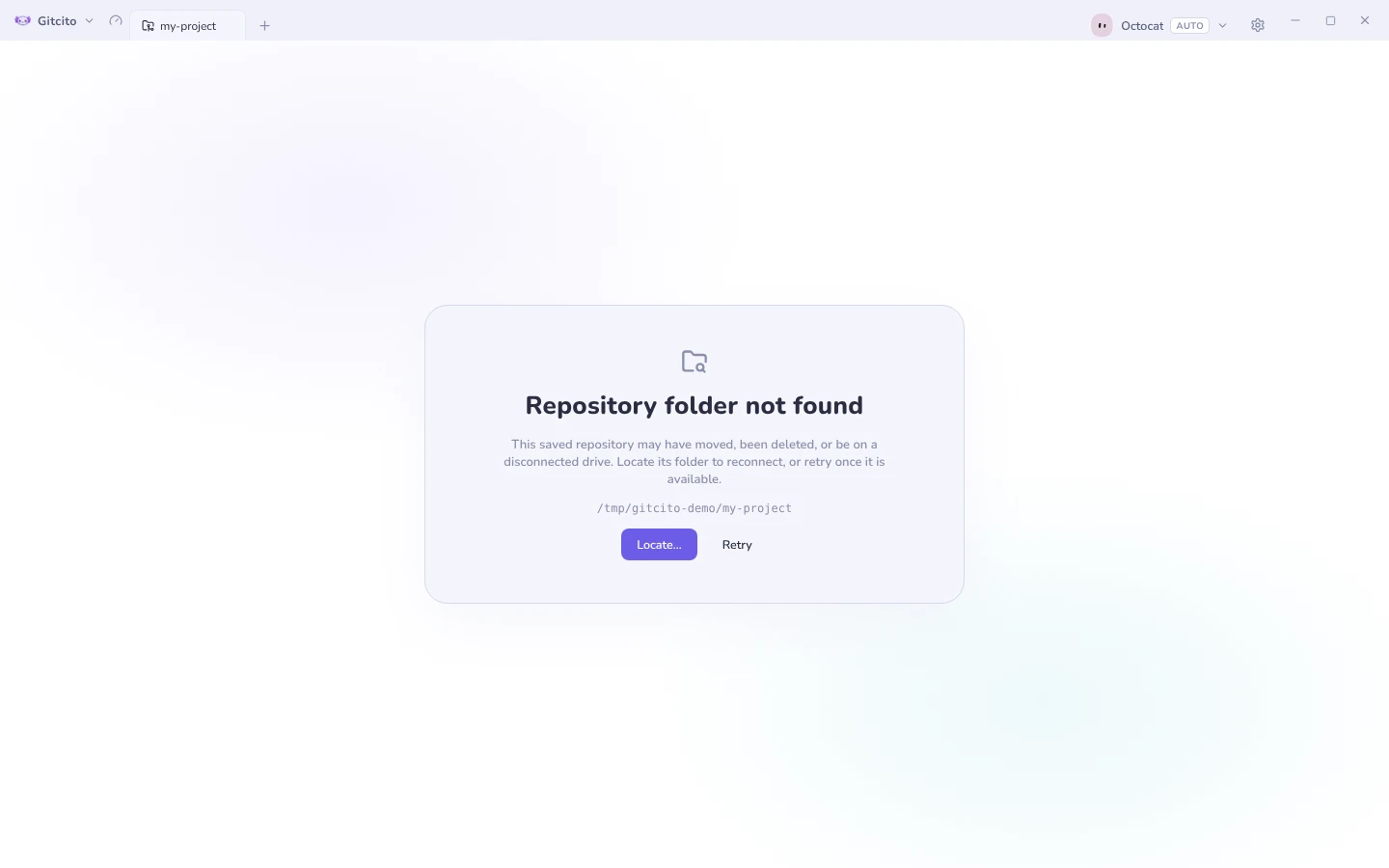
| Button | What it does |
|---|---|
| Locate… | Pick the folder's new location. It must be a Git repository; the tab, alias, profile binding and star move to it |
| Retry | Checks the same path again — for a drive or network share that has come back |
The tab is kept until you reconnect it or close it yourself: a missing external drive is usually temporary, and losing the tab for it would be worse than a quiet placeholder. While the folder is missing, the automatic background fetch skips it.
Limits: Gitcito does not search for where a folder went — Locate… asks you. A folder that exists but is no longer a repository shows the usual Not a Git repository prompt instead.
The star is a favourite toggle, not a bulk-selection checkbox. Batch work here is per section rather than per selection — see below.
Turning a folder tree into workspaces
Your code folder already encodes the grouping you want. If ~/Code holds
client-a, client-b and personal, those are contexts you switch between —
and a workspace is exactly that, with its own tab strip.
Add scan folder… offers to build them. After the scan has indexed what it found, a dialog lists the folders directly inside the one you picked, with how many repositories each holds. Tick the ones you want; each becomes a workspace containing one tab per repository.
| Row | Meaning |
|---|---|
| A folder name and a count | Ticked by default — it becomes a workspace |
| "{n} new — merges into …" | A workspace for this folder already exists; only the new repositories are added |
| "Already in a workspace" | Nothing to do, shown greyed out rather than hidden |
| The root's own name | Repositories sitting loose in the folder you picked, not in a subfolder. Unticked by default |
A repository is filed under the first folder below the root, however deep it
sits: ~/Code/client-a/nested/app goes into client-a. Folders holding no
repositories are not offered.
Nothing is created until you confirm, and cancelling still leaves the scan's indexing in place — the repositories are known either way, which is what this button did before.
Scanning again later
Safe to repeat. A second scan adds and never removes:
- New repositories are appended to the matching workspace.
- Repositories you moved, renamed or removed by hand stay as you left them.
- A workspace you renamed is still recognised — Gitcito remembers the folder it came from, so it merges instead of creating a duplicate.
- A repository deleted from disk keeps its tab, showing as missing.
Generated workspaces are ordinary ones. Rename, reorder, recolour or delete them like any other; nothing about them stays special.
Closing everything that is open
The Open repositories header carries a close button — Close repository when one is open, Close all tabs when several are. It is disabled when nothing is open.
It closes the tabs that hold repositories and leaves page tabs alone, so the Repositories page you are standing on does not close itself. Nothing on disk is touched, and nothing is committed, stashed or discarded — a tab is just a view.
Closing several asks first, and says how many. Closing a single one does not: that is a cheap mistake, undone with the usual reopen-closed-tab shortcut. The closed tabs go on the same ten-deep stack a single close uses, and reopen in the order they sat in the strip — so more than ten at once cannot all be brought back.
Fetching and pulling a whole section
Each section header carries a fetch button and a pull split-button. They act on every repository in that section, skipping any whose folder is missing. The repositories do not need to be open — a section of repos you have never opened this session works the same.
Both run sequentially, not in parallel, so a section of forty repositories does not spawn forty git processes at once. The status bar shows which repository is being worked on and how far through the run you are, and the whole batch ends with one toast rather than one per repository. If some fail, the toast says how many succeeded and how many did not; the run does not stop at the first failure.
The caret beside pull chooses what pulling means:
| Mode | What it does |
|---|---|
| Pull (fast-forward if possible) | Git's default — fast-forwards when it can, merges when it cannot |
| Pull (fast-forward only) | Refuses rather than creating a merge commit |
| Pull (rebase) | Replays your local commits on top of the upstream |
That choice is a single global preference, not a per-section one: it describes how you pull, and setting it from one section's caret changes it everywhere. Every multi-repository pull honours it — the section buttons here, the fetch/pull on a group tab, and mission control's bulk pull. Pulling a single repository from the toolbar is unaffected, because that menu already asks you which kind of pull you want.
The action bar
Open folder…, Clone…, and Add scan folder… — three ways to bring a repository into Gitcito's registry, from the same page you use to find one that is already there.
WIP summary
An opt-in checkbox. On, each expanded row runs a real git status and
shows uncommitted work and sync state — off, rows cost nothing beyond reading
files inside .git.
It is opt-in on purpose: a summary costs roughly five git processes per repository, batched eight at a time so a large registry does not stall the UI. Turning it on is a deliberate "check everything I can currently see," not a standing cost.
Limits
- Nothing on this page refreshes on a timer. Reopen the page, or toggle WIP summary off and on, to see current state.
- WIP summary only covers expanded sections. A collapsed section shows no status at all, checked or not.
- A repository is only known once you have opened it, or scanned a folder that contains it. There is no way to search the filesystem from here.
- Building workspaces cannot be undone in one step. Cancelling the dialog creates nothing, but a plan you confirmed and then regret is unwound by deleting the workspaces by hand.
- Only one level deep. Folders below the first level are flattened into the
workspace's tab strip —
client-a/nested/appbecomes a tab inclient-a, not a folder inside it. - Settings' "Scan now" does not offer this. It rescans every configured root at once, where a per-folder dialog makes no sense, and only indexes.
- Close all reopens one tab at a time, up to ten. Closing more than ten repositories at once means the oldest of them cannot be reopened from the stack — though they are all still in Recent.
- Pull is not filtered by what is behind. It pulls every repository in the section, because knowing which ones are behind would mean fetching first. Pulling an up-to-date repository is a no-op, so this costs time, not safety.
- A section fetch or pull cannot be undone from the undo stack. Fetching changes nothing you had; a pull that merges or rebases is reversed per repository from that repository's own history, not from here.
- Section colours are cosmetic. They do not filter, sort, group or sync anywhere, and a colour set on a workspace's section is not that workspace's colour.
- Forget removes the entry from the list — never from disk. If the folder is still there, scanning the same root (or opening it again) brings it right back.
See also: Mission control · Workspaces, tabs & groups