
Todos
Half the notes a developer writes are one line long and live for an afternoon: rename that variable before the PR, the fixture path is wrong, ask about the retry limit. An issue tracker is too heavy for those, a scratch file gets committed by accident, and a sticky note is invisible the moment you switch repositories.
Todos are that list, attached to the repository you are standing in.
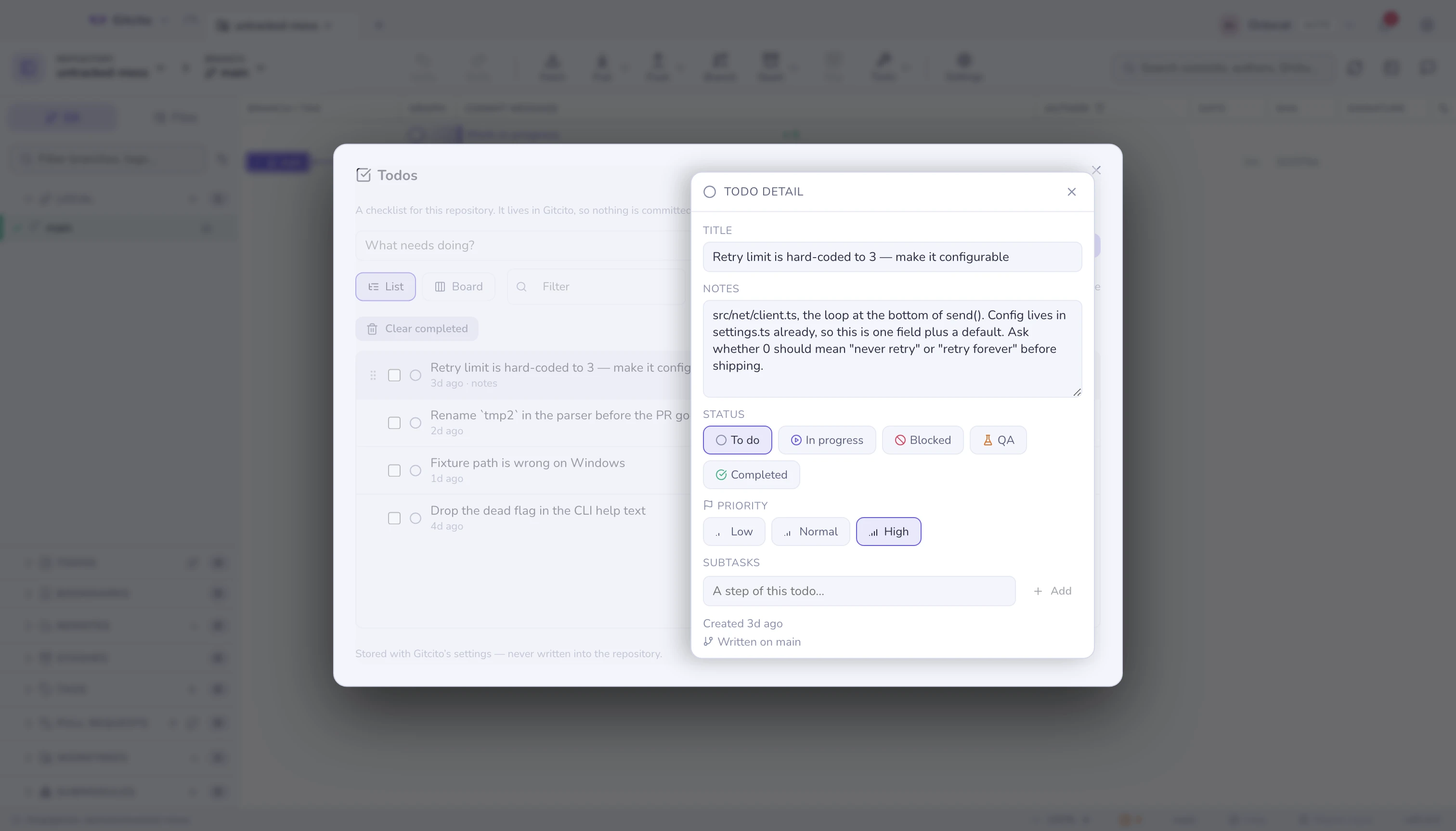
Where they live
Nowhere in your repository. A todo is stored with Gitcito's own settings, keyed by the repository's path, which has three consequences worth knowing:
- Nothing is committed. No file appears in
git status, so a todo can never ride along in a commit or a diff. - Nobody else sees it. This is a note to yourself, not a shared backlog. If a task belongs to the team, it belongs in an issue.
- It follows the folder, not the branch. Open the same clone in two tabs and you see one list. Open a second clone of the same project elsewhere on disk and you get a second, separate list.
The branch you were on when you wrote it is recorded as context on the todo, shown in its detail view. It is a reminder of where you were, not a filter — todos do not disappear when you check something else out.
Writing one
Open the list — the ↗ button on the Todos section header, the chip in the status bar, or Todos in the command palette — type the line and press Enter. The sidebar section itself stays a list you read and tick; writing happens in one place.
The list is sorted for you: open items first — high priority above normal, above low, and within a priority the oldest first, because the thing that has been ignored longest is the thing worth seeing. Completed items sink below, most recently ticked at the top, so undoing a mis-click is one move away.
Putting them in your order
The default sort is opinionated, and sometimes wrong: the three things you actually intend to do this afternoon are not necessarily the three loudest ones. Drag a row by its grip, or press the ▲ / ▼ buttons on it — Alt with the arrow keys does the same from the keyboard — and the list keeps the order you put it in.
The first drag or nudge switches Manual order on for you; untick it in the filter row to hand the list back to the priority sort, which is remembered exactly as it was. Two limits worth knowing:
- Only open todos move. Completed ones stay in their pile below, most recently ticked first, whichever mode you are in.
- Reordering steps aside while the filter box has text in it, because a row moved past neighbours you cannot see lands somewhere you did not expect.
Priority is still shown, as signal bars beside each row — one bar for low, three for high — and still drives the yellow status-bar chip.
Seeing them without looking
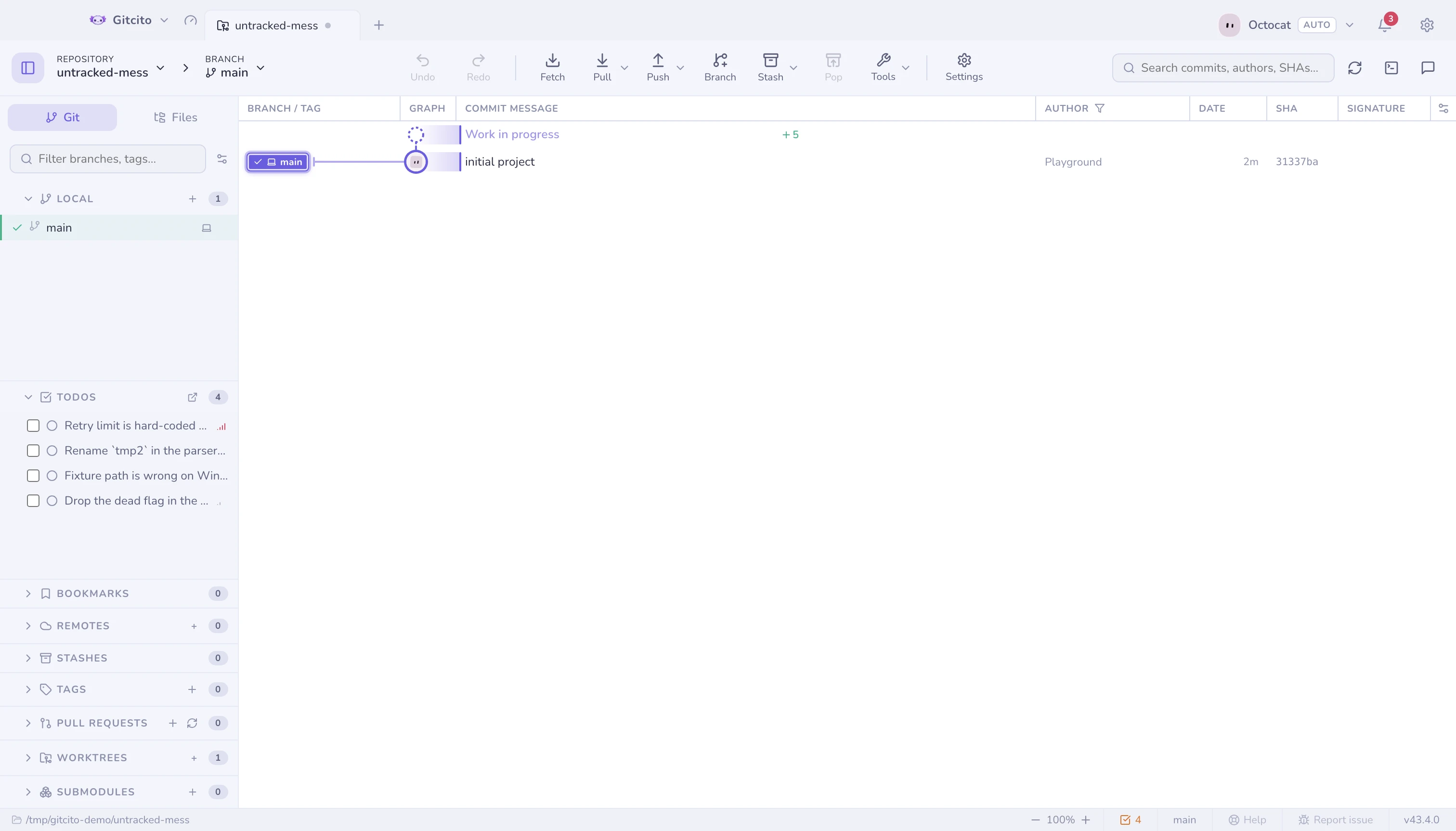
| Marker | Where | Means |
|---|---|---|
| ☑ 3 chip | Status bar, left of the branch name | How many are open; yellow if any is high priority |
| Count badge | The sidebar section header | The same number, next to the list itself |
Both disappear at zero. A permanent "0 todos" is furniture, and furniture is what people stop seeing.
The detail view
Click a todo — in the sidebar, or the chip in the status bar, or Todos in the command palette — to open the full list with a detail pane.
| Field | What it is for |
|---|---|
| Title | The one line. Edited in place; there is no save button. |
| Notes | Everything the title could not hold: why it matters, which files, what "done" looks like. |
| Priority | Low, normal or high. Drives the sort order and the yellow status chip. |
| Created / Completed | When you wrote it, and when you ticked it. |
| Written on | The branch that was checked out at the time. |
The same view carries the filter box, a Show completed toggle, and Clear completed — which deletes the ticked items for good and asks first.
That toggle is the same switch as Settings → Appearance → Hide completed todos: turn it off and ticked items vanish from the sidebar section as well as from this list. Nothing is deleted, and the counts keep including them. Hiding is the default, so you start out seeing only the open todos.
What it deliberately does not do
- No due dates, no reminders, no notifications. A todo list that nags is a calendar; this one waits until you look at it.
- No sync and no sharing. It never leaves your machine, and it is not part of a workspace export.
- No link to issues or commits. If a note deserves that much structure, it has outgrown this list — open an issue instead.
- Deleting is final. There is no undo entry for removing a todo, because nothing in git recorded it in the first place.
See also: Per-repository settings · Mission control