
Branches, remotes & the sidebar
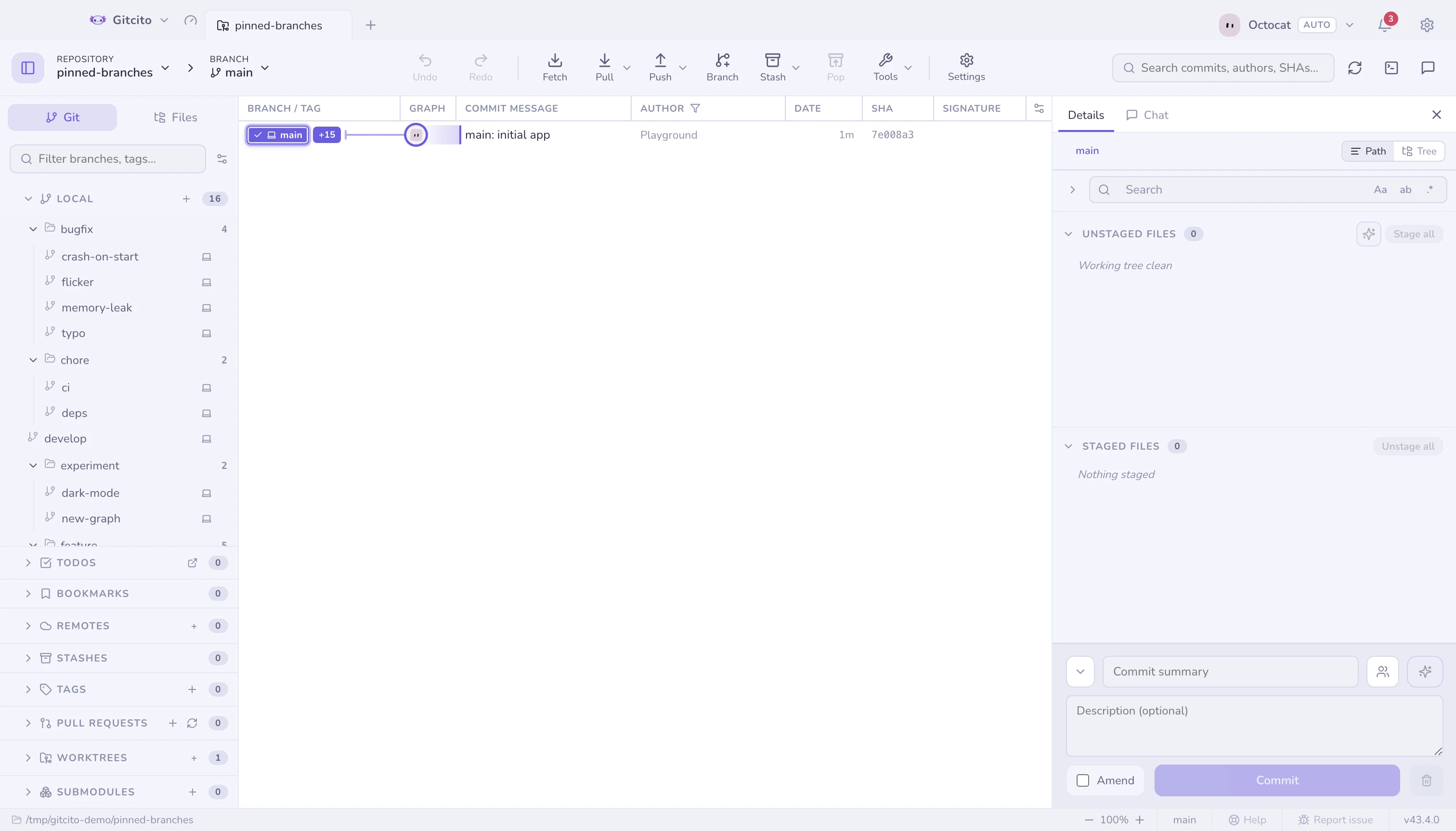
One reorderable, searchable sidebar holds branches, remotes, tags, stashes, worktrees and submodules. Every section can be hidden or reordered (Settings → Layout), and the filter box applies to all of them. Which sections and folders you keep expanded or collapsed is remembered per repository, across restarts.
The sidebar is a stack of panes, not one long list. An open section takes the height left over by the collapsed ones, which sit below it as header rows; open several and they share that height equally, each scrolling on its own. A section with hundreds of tags scrolls inside its pane and the other headers stay where they are, so nothing you want to click ever drifts off screen. Open more sections than fit and every pane shrinks together down to its header — the sidebar itself never scrolls.
Only Local starts open in a repository you have not arranged yet; every other section starts as a header. A section holding more than 300 refs starts collapsed regardless. A repository with thousands of never-deleted remote branches would otherwise put every one of them on screen before you asked for any; open it once and that choice is remembered like any other.
Branches
Create, check out, rename and delete — local and remote. Branch rows show:
- ↑ahead / ↓behind against their upstream,
- per-remote presence badges (which remotes have this branch),
- a risk dot after a conflict radar scan,
- a ⟳ marker when the remote rewrote history.
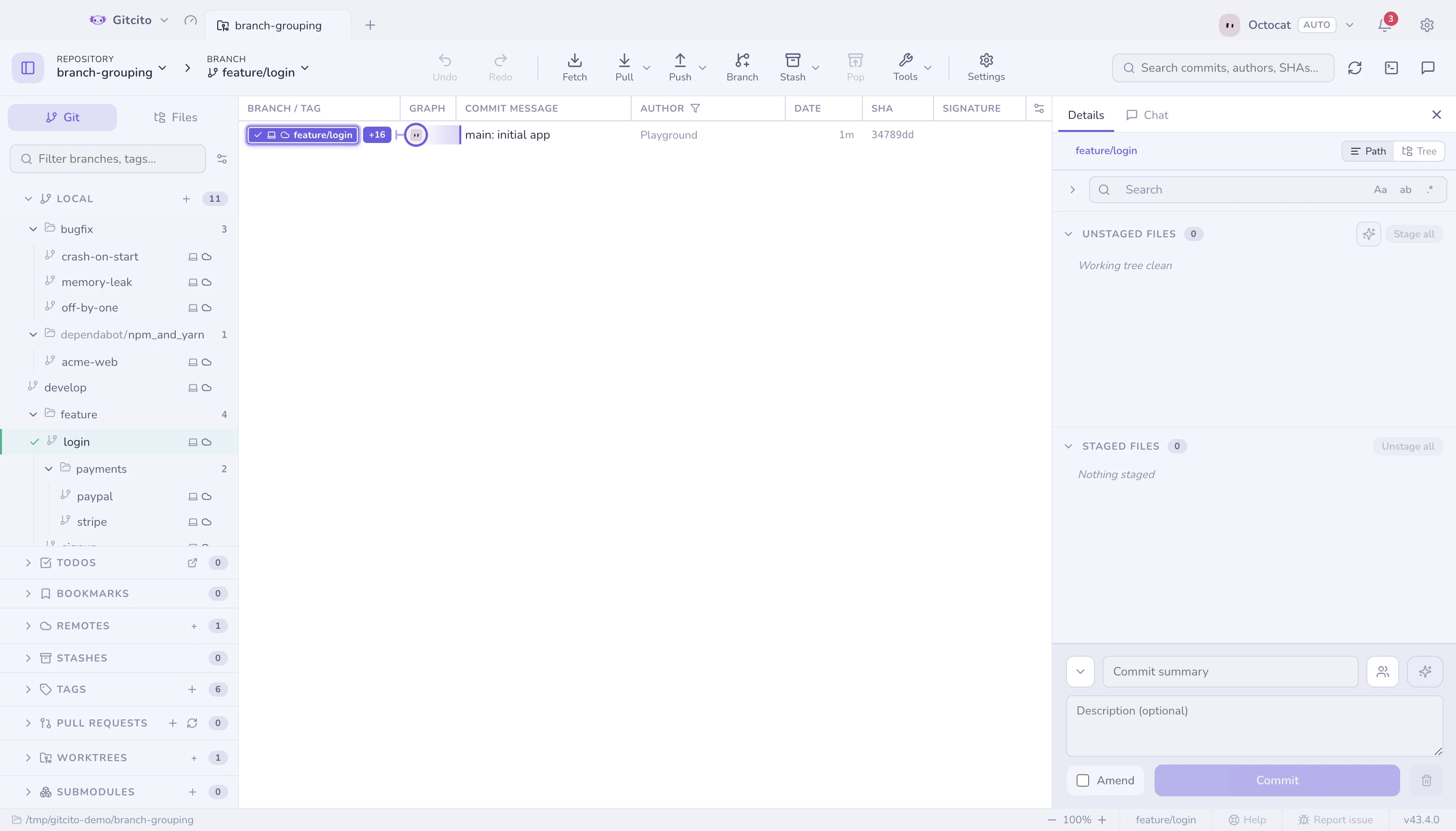
Branches with / in their names fold into collapsible folders automatically.
A prefix with one child is still a folder — release/1.2.3 is release
containing 1.2.3 — so adding release/1.2.4 later does not reshape the
tree. A run of single-child folders collapses into one header
(dependabot/npm_and_yarn). Folder headers use a folder mark; the ref itself
uses a branch, remote or tag mark.
Right-click a folder header to act on the whole group: Delete all branches
under feature (4 branches) removes everything inside after one confirmation
that lists exactly which branches go — the branch you are on is excluded. The
same menu exists on remote branch folders, deleting from the remote instead.
The repository and branch pickers sit at the left of the toolbar. When a name is longer than the room they have, it is cut short with an ellipsis before the dropdown arrow; open the picker to read it in full.

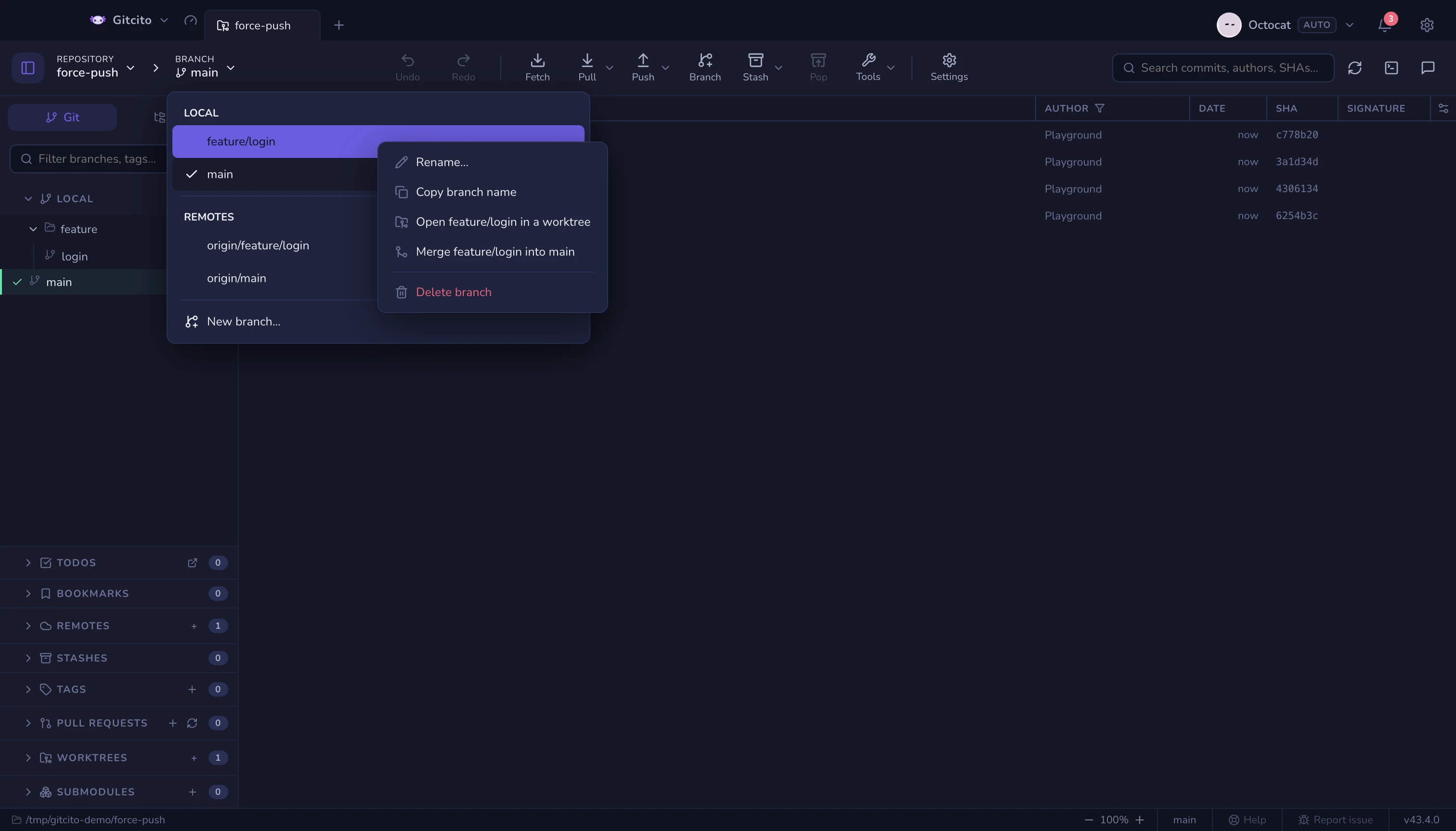
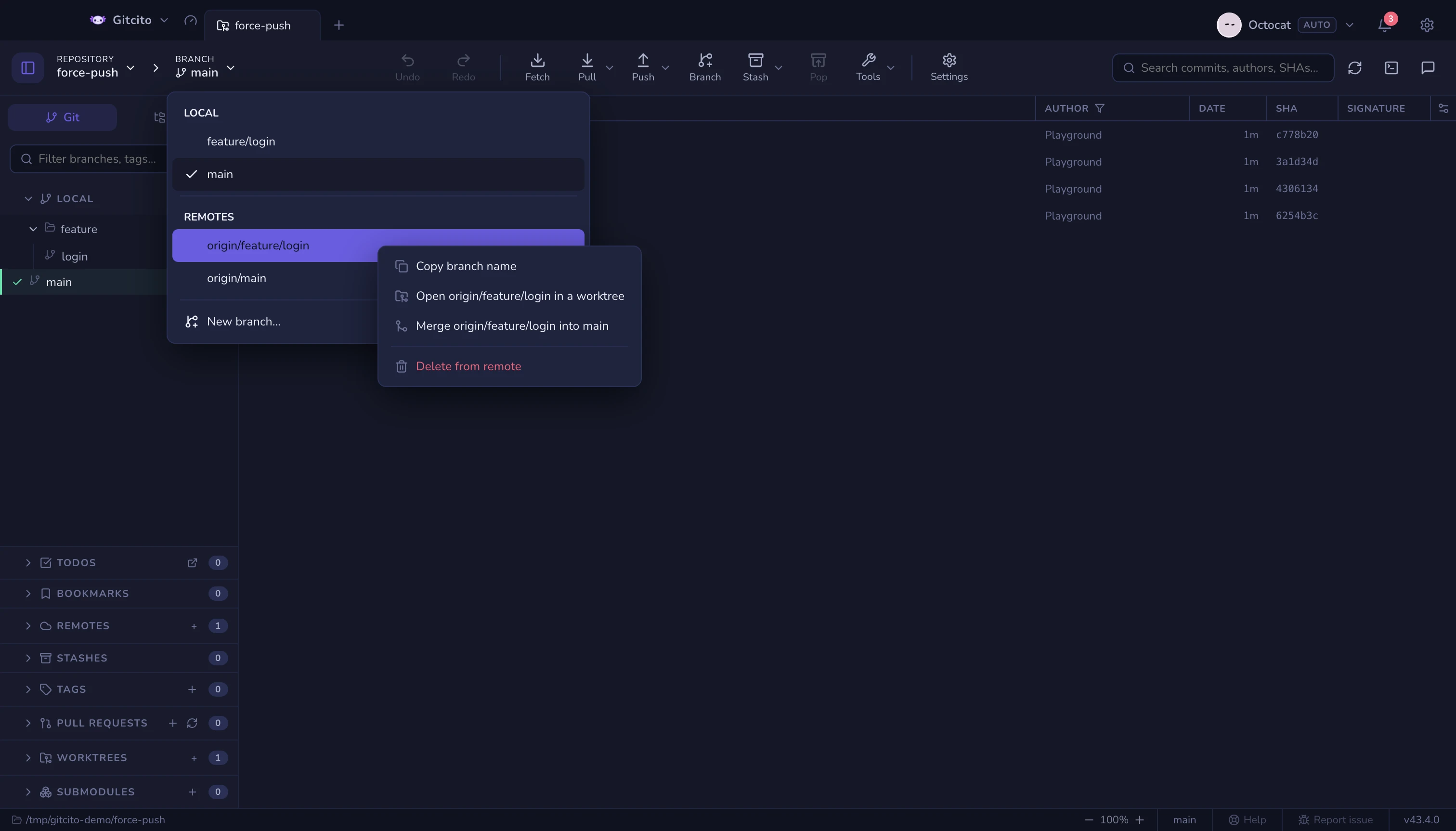
The branch dropdown in the toolbar lists local and remote branches. Right-click any branch in that dropdown to rename a local branch, copy its name, check it out in a new worktree, merge it into the active branch, or delete it. Remote branches omit rename and are deleted from their remote after confirmation. Gitcito omits merge when the selected ref is already contained in the active branch, and disables worktree creation when that branch is already checked out.
Rows multi-select like files: ⌘/Ctrl-click toggles a row, Shift-click selects a range, and Shift+↑/↓ grows the selection from the last row you clicked. Right-click the selection for the bulk menu — Delete 4 branches — which confirms with the full list. The same gestures work on remote branches, tags and stashes.
Renaming a branch
A branch named fix three days ago is a branch nobody can place today. Rename
it from wherever you noticed the problem:
| Where | How |
|---|---|
| Sidebar | Right-click the branch → Rename… |
| Toolbar branch dropdown | Right-click the branch → Rename… |
| Commit graph | Right-click the branch badge on a commit → Rename… |
| Command palette | ⌘/Ctrl+K → Rename branch (acts on the checked-out branch) |
A local rename is git branch -m: instant, and undoable with ⌘Z — the undo
entry renames it back. Renaming the branch you are on keeps you on it.
When the branch tracks a remote, the menu also offers Rename (incl. remote)…, which renames locally, pushes the new name and deletes the old one upstream. That is not undoable — the old remote branch is gone, and anyone who had it checked out has to repoint. It is offered on a graph badge only when the branch tracks exactly one remote; with several, pick the branch in the sidebar so the upstream is unambiguous.
Limits: Gitcito does not rewrite anything that referred to the old name — open pull requests still point at the branch they were opened against, and CI rules matching a branch pattern stop matching. Renaming a branch that is checked out in another worktree fails, and git says so.
Pulling and pushing a branch you are not on
Right-click any local branch for Pull and Push entries that act on that branch, not on the checked-out one — no detour through a checkout to catch up three branches. See fetching, pulling & pushing.
Pinned branches
Star the branches you keep coming back to — hover the row and click ★, or right-click → Pin branch. They surface in a Pinned group at the top of the Local section, remembered per repository, while staying in their normal place below.
Checking out a remote branch
Double-click a remote branch to create the local one that tracks it. If a local branch of that name already exists and has diverged, Gitcito asks how to reconcile — rebase, merge or reset — and offers to back the branch up first.
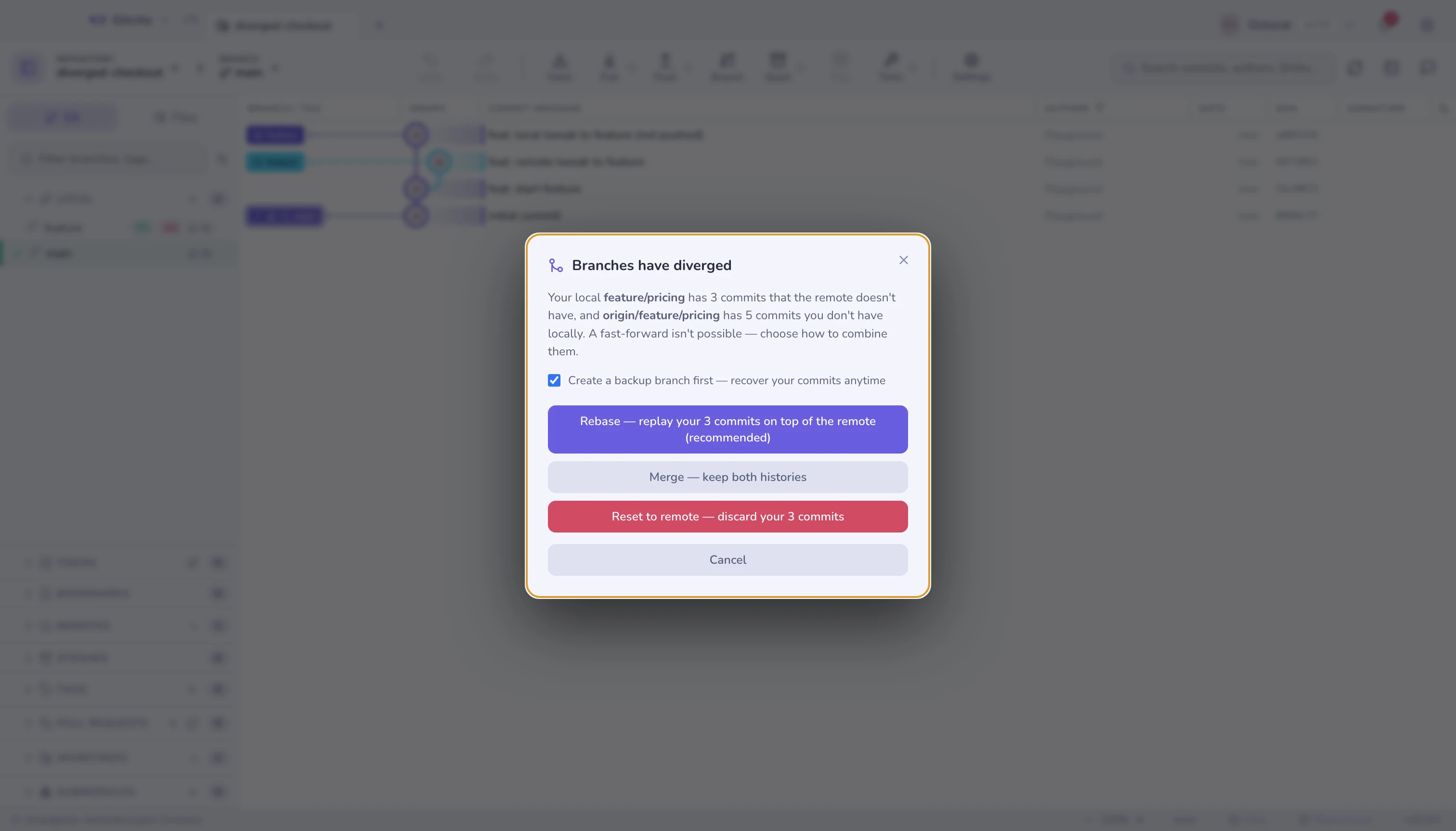
When your local branch is behind
It is fast-forwarded to the remote tip as part of the checkout. A dirty working tree is stashed under a named stash and restored afterwards, so local edits do not abort the update.
When your local branch is ahead
If the local branch is ahead and the remote has nothing new, checking out would answer a request for the remote branch with your own unpushed work — so nothing is checked out until you say which side you meant:
| Choice | What happens |
|---|---|
| Check out local | Switches to the local branch, commits intact. What every other client does silently. |
| Reset (soft) | Moves the branch back to the remote tip; the commits' changes stay staged, ready to recommit. |
| Reset (mixed) | Same move, changes left unstaged in the working tree. |
| Reset (hard) | Discards the commits and their changes. |
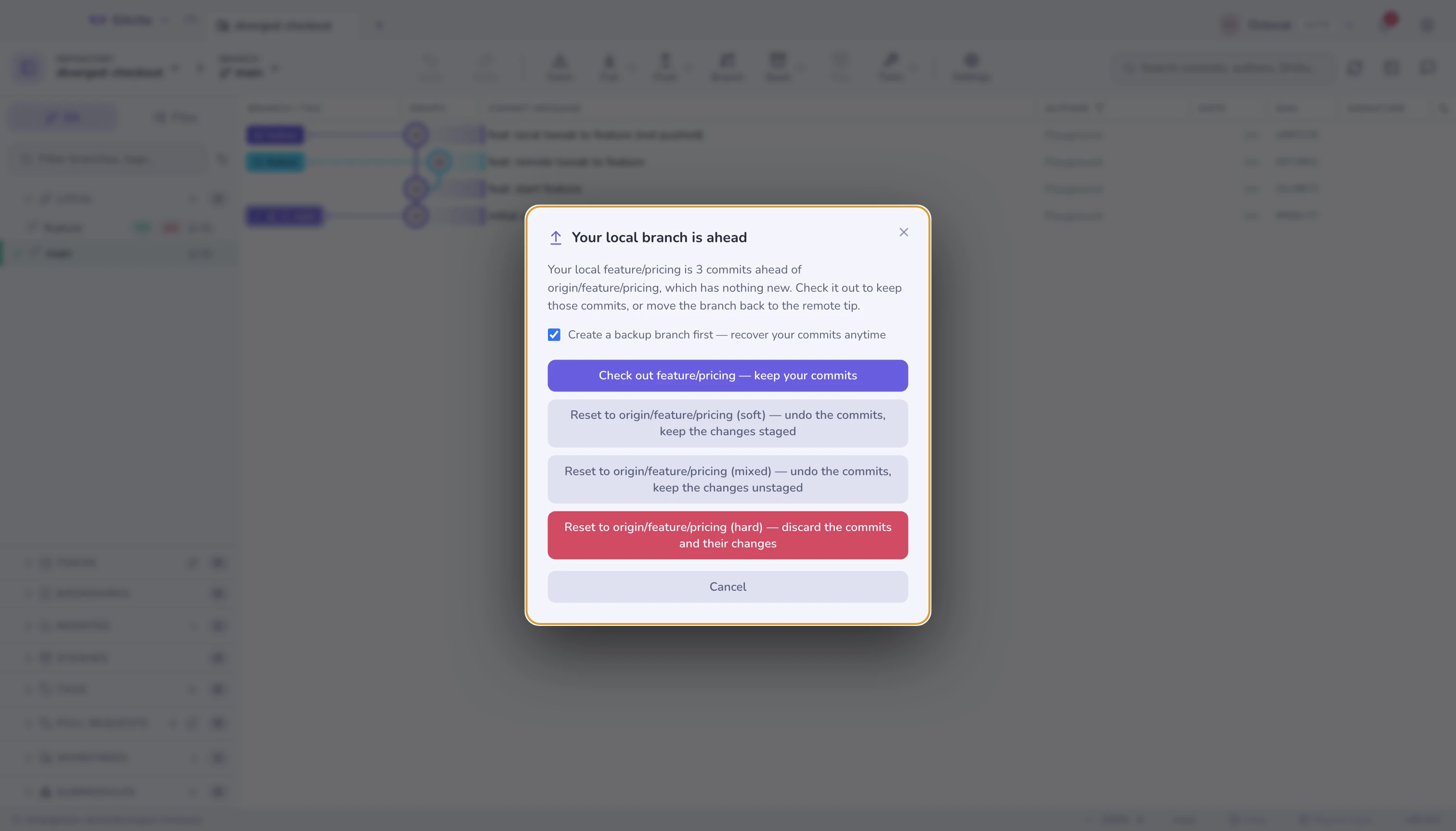
Leave Create a backup branch first ticked and the local tip is saved as
backup/<branch>-<timestamp> before anything moves, so even a hard reset is a
branch checkout away from being undone. The reset also lands in the undo stack
(⌘Z) — but only until you close the repository, which the backup branch
outlives.
Limits: the picker only compares the branch against the tracking ref that was just fetched, so a remote that rejected the fetch (offline, bad credentials) is compared against the last known tip. It says nothing about whether your commits are good — only that they exist here and not there.
Remotes
The sidebar's Remotes section is where remotes are added, edited, fetched and removed. Fetch, pull or push on a repository that has none opens that same Add remote dialog — paste a URL or create the repo on the host — instead of doing nothing. See fetching, pulling & pushing.
See also: Merging & rebasing · Worktrees