
Repository chat
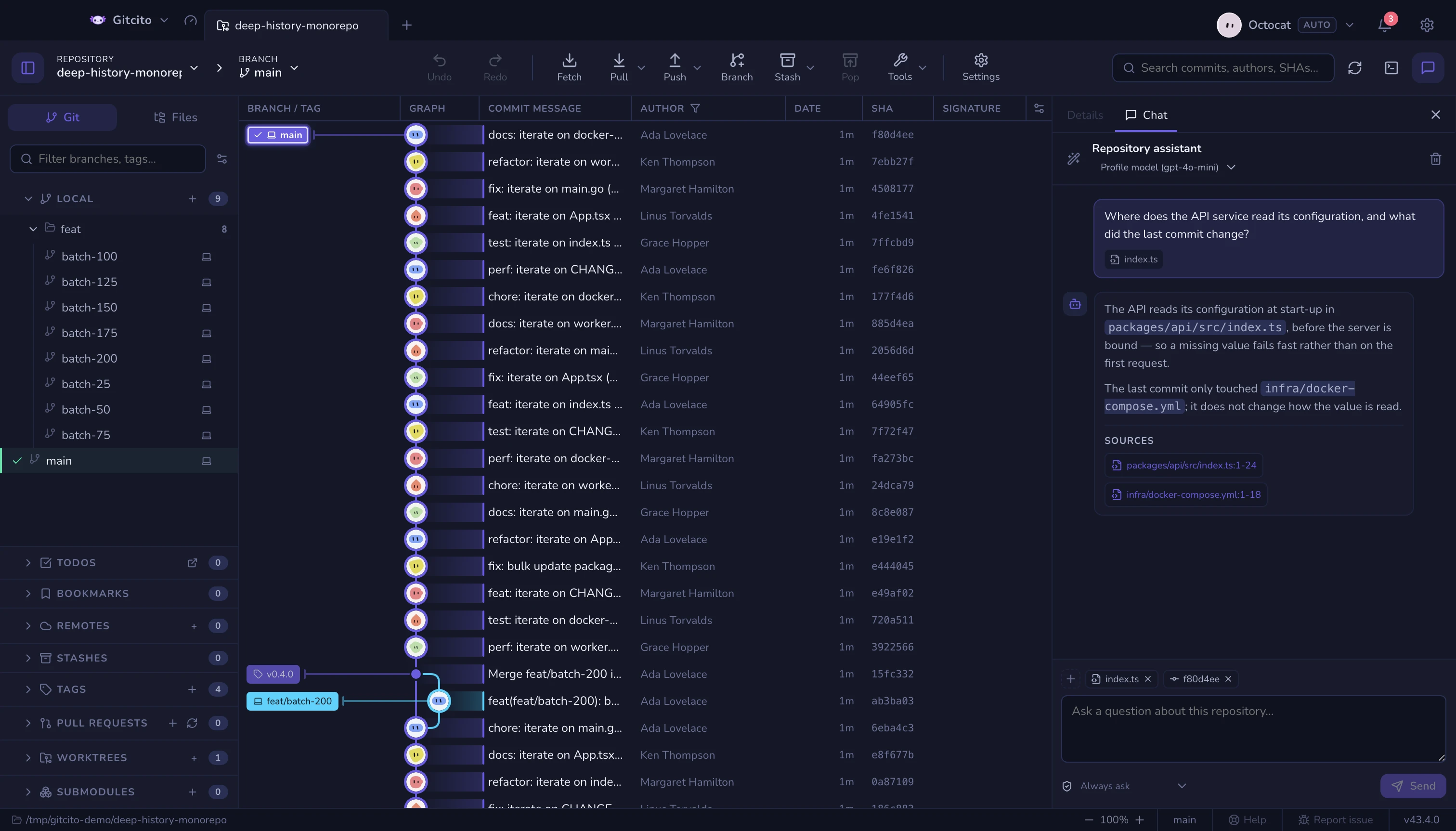
Some questions are faster to ask than to search for. Where does the token refresh actually happen? What did this commit change, in one sentence? Why does this file exist? Repository chat answers those against the repository that is open, and shows the lines it based each answer on.
It shares the right-hand column with Details: the tab strip at the top switches between them, so the graph never loses its selection when you ask something.
What it reads
Every answer is built in two passes. The first picks a small set of paths and literal searches from the repository's own tracked-file list. The second answers using only the excerpts that pass brings back, and may cite only those excerpts — a made-up file or line is a validation error, not a plausible-looking answer.
A second look. The first pass has to guess which files matter from their names alone, which is exactly the guess that fails on "where is this called from". So an answer is allowed to ask back instead of guessing: it can name more paths, more literal searches, or commit hashes from the recent history, and the question is put again with what those turn up. That happens at most twice — each round is another model call you wait for — and on the last one it must answer with what it has. You see none of this except a slightly longer wait and a better answer.
What it can see:
| Included | Excluded |
|---|---|
| Tracked files, as they are in your working tree | Untracked files |
| Staged and unstaged diffs of tracked files | Anything matching an ignore rule, even if tracked |
| Branch, ahead/behind, and the list of changed paths | Secret-looking files, binaries, generated paths |
Working-tree content means you can ask about edits you have not committed. It also means those edits leave your machine when you ask — the provider you configured in AI features receives them.
One nuance: with action proposals enabled, the names of untracked files are included in the repository state — "stage the new file" needs them — but their contents are still never read.
Pinning context
The model decides what to read. Pinning is how you overrule it: anything pinned is read first and gets the larger share of the context budget.
Four ways to pin, all landing in the same chip row above the message box:
| Do this | Gets you |
|---|---|
| Click a suggestion chip | The file open in the viewer, or the commit selected in the graph |
| Drag a row from the Files tab | That file |
| Drag a row from the commit graph | That commit — its message, and its diff as hunks |
| + → Choose a file…, or drag from Finder/Explorer | Any file on disk, including outside the repository |
Chips stay pinned for follow-up questions, so a conversation keeps its footing;
× on a chip removes it, and clearing the conversation drops them all. Eight
items is the cap.
A pinned commit contributes its message and up to twelve diff hunks. Hunks that touch an excluded path are dropped from that diff, not the whole commit.
Settings
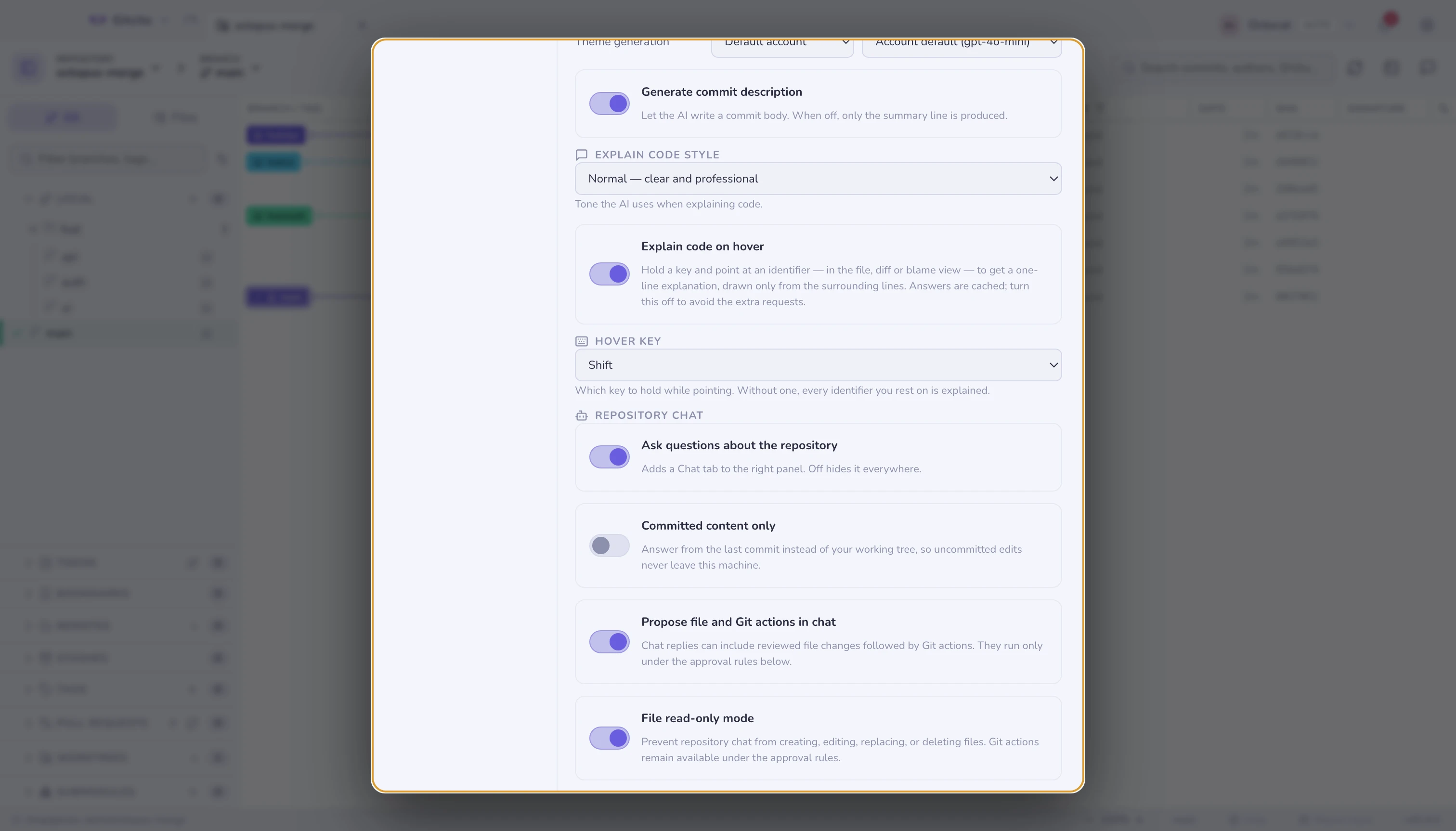
Settings → AI → Repository chat:
| Setting | Does |
|---|---|
| Ask questions about the repository | Off removes the tab, the toolbar button and the shortcut target. The rest of the AI features keep working |
| Committed content only | Answers from the last commit instead of the working tree: uncommitted edits and diffs never leave the machine |
| Propose file and Git actions in chat | Off makes chat purely read-only again: no action cards, no approval dropdown |
| File read-only mode | On blocks file creation, editing, replacement, and deletion while keeping Git actions available. It is on by default |
| Let chat propose remote actions | Off by default. On adds fetch, pull, push, opening a pull request and submitting a stack to what chat may propose — see Actions that leave the machine |
| How proposed actions run | The approval mode — see Approval modes. Destructive actions confirm regardless |
Which account and model answers chat is set under Which account answers what on the same page — see AI features. Questions are cheaper than reviews, so a smaller model is often enough.
With AI switched off entirely, chat disappears with it — there is no panel offering to answer once nothing can.
The panel's own header switches account and model without opening Settings: the dropdown groups every model by the account that serves it, so moving a single question to a stronger model is one click and does not disturb the rest of the app.
The wand button next to the panel title opens the AI config wizard — a guided flow that generates assistant configuration files (instructions, agents, hooks) for this repository. See AI features.
Working with messages
Messages are ordinary text. Select any part of one and copy it, or right-click a bubble: Copy takes the selection, Copy message the whole message — an answer is copied as its Markdown source — and, when the click landed on a link, Copy link takes its address.
Links open in your default browser, never inside Gitcito — Markdown links in
answers and plain https:// addresses in your own messages alike.
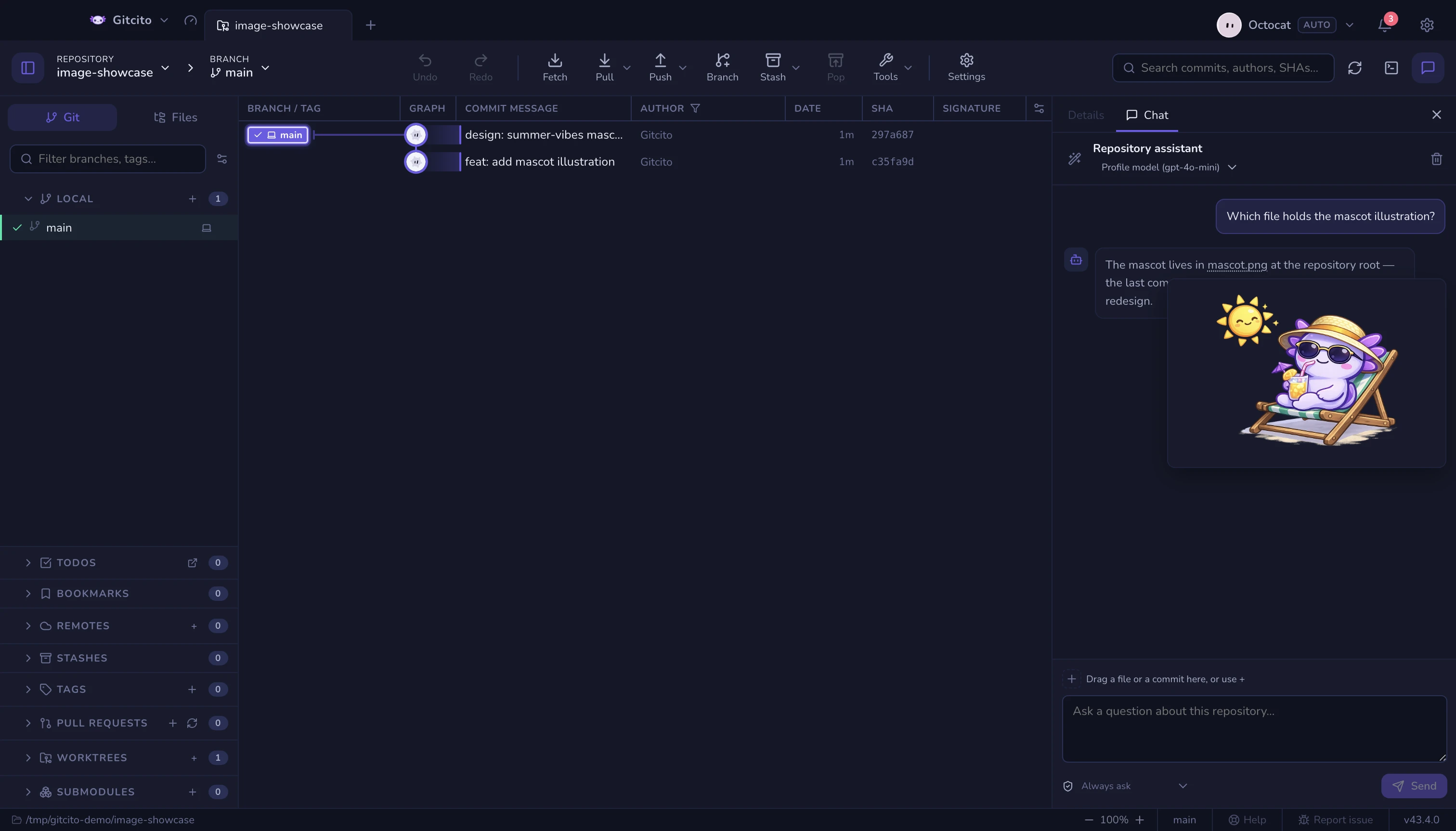
When a message mentions an image — a repository path like docs/logo.png, or
a URL ending in an image extension — hovering the mention shows a small
preview. Repository paths are read from your working tree; a mention that does
not resolve to a readable image simply shows nothing.
Running actions from chat
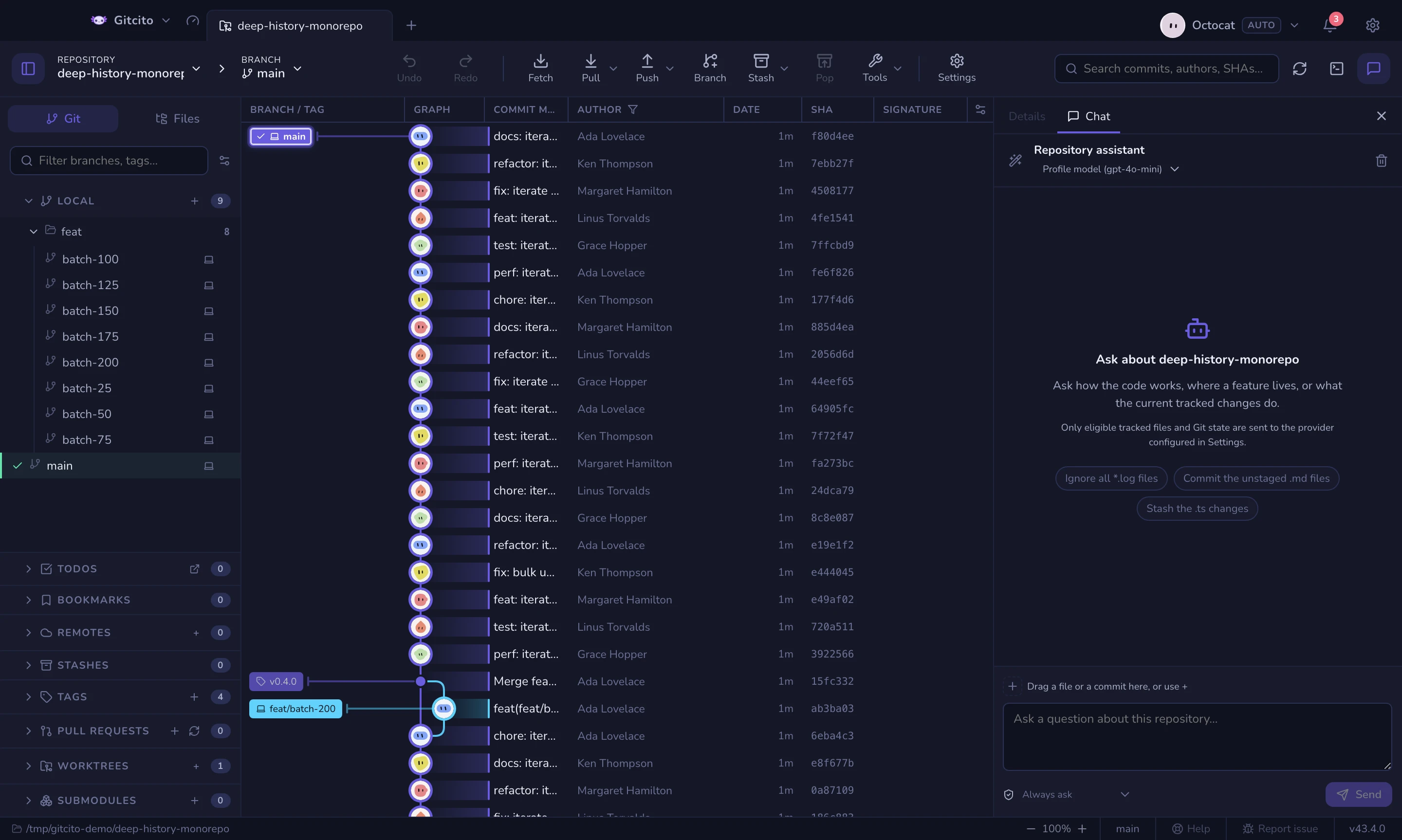
Ask for a change instead of a fact — stage the markdown files, commit this as a fix, put the build output on the ignore list — and the reply arrives with an action card. An empty conversation offers a few example requests as chips under the introduction; clicking one fills the composer so you can edit it before sending. The card lists the concrete steps the assistant wants to take, one row per action, with Run and Dismiss buttons. Nothing in the card has happened yet; the model can only propose, and every proposal is checked against the working tree before you ever see it — an action naming a file that does not exist is rejected, not rendered.
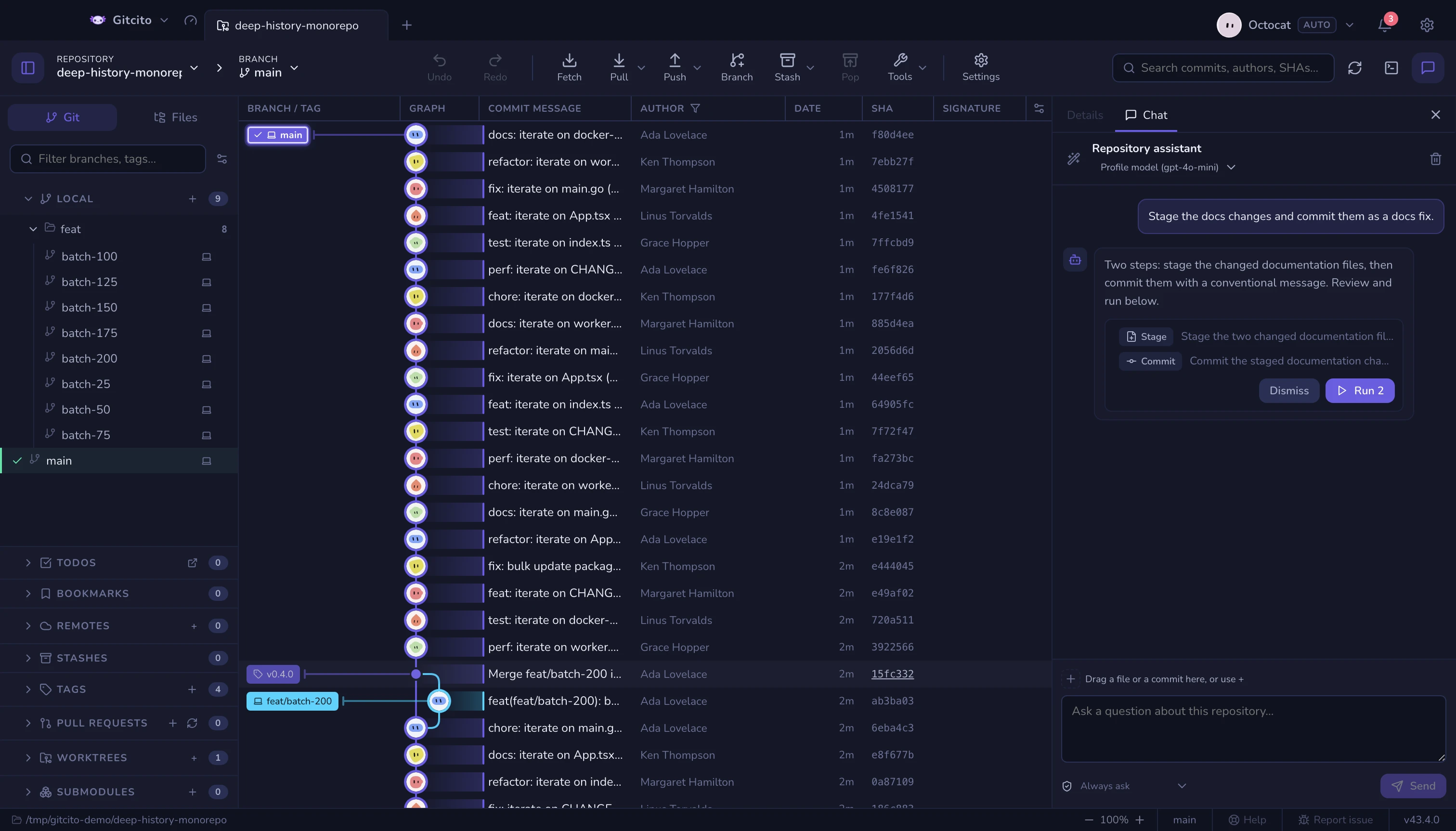
Repository chat can propose exact edits, whole-file creation or replacement, and file deletion, followed by Git actions: ignore patterns, stage, unstage, commit, stash, discard, branch, checkout, tag, and — because chat is shown the branch list and the recent commits — merge, rebase, revert, and cherry-pick. Gitcito computes each expandable diff locally. Existing files must come from evidence the assistant read; unsafe, secret, ignored, generated, binary, stale, oversized, and symlinked targets are refused. Reset, history rewriting, deleting a branch and every force operation remain available only in their dedicated UI.
A merge or a rebase can stop on a conflict. When it does, the run stops there, the card marks the row failed and keeps the count of what already ran, and the conflict banner takes over exactly as it would for the same operation started from the toolbar.
It can also write .gitcito.json. Chat is handed the shape of
the repository's own config file, so add ticket links for
JIRA-1234 or protect the release branches becomes a file action written
against the real schema instead of plausible-looking keys the loader would
reject. It needs file actions enabled — the same File read-only mode switch.
Rows that need a picture get one. A one-line summary is enough for "stage two files" and nowhere near enough for "open four pull requests against a stack", so the rows that describe shape draw it: the branch a push publishes and how far ahead it is, the two refs a merge or rebase involves, the commits a revert or cherry-pick would replay by their subjects, the pull request as it will look, and a stack as a ladder with each level's base and whether the submit would open it, retarget it, or leave it alone.
Actions that leave the machine
Fetching, pulling, pushing, opening a pull request and submitting a stack are off by default, behind Let chat propose remote actions. Publishing work is a decision worth opting into, and with the setting off the model is not told those actions exist — it cannot propose one and be refused, which is the failure mode that teaches people to turn things on without reading.
With it on:
| Action | Does |
|---|---|
| Fetch / Pull | The same fetch and pull the toolbar runs; the pull mode (merge, fast-forward only, rebase) is part of the proposal |
| Push | Publishes one branch to one remote. Never with force — a force push is not in the vocabulary a proposal is written in, so it cannot be proposed at all |
| Open PR | Opens one pull request, draft or not, against the repository's own origin. The card keeps the link afterwards |
| Submit stack | The whole stacked-PR submit: push every level, open or retarget one pull request each, write the navigation section, register the GitHub stack |
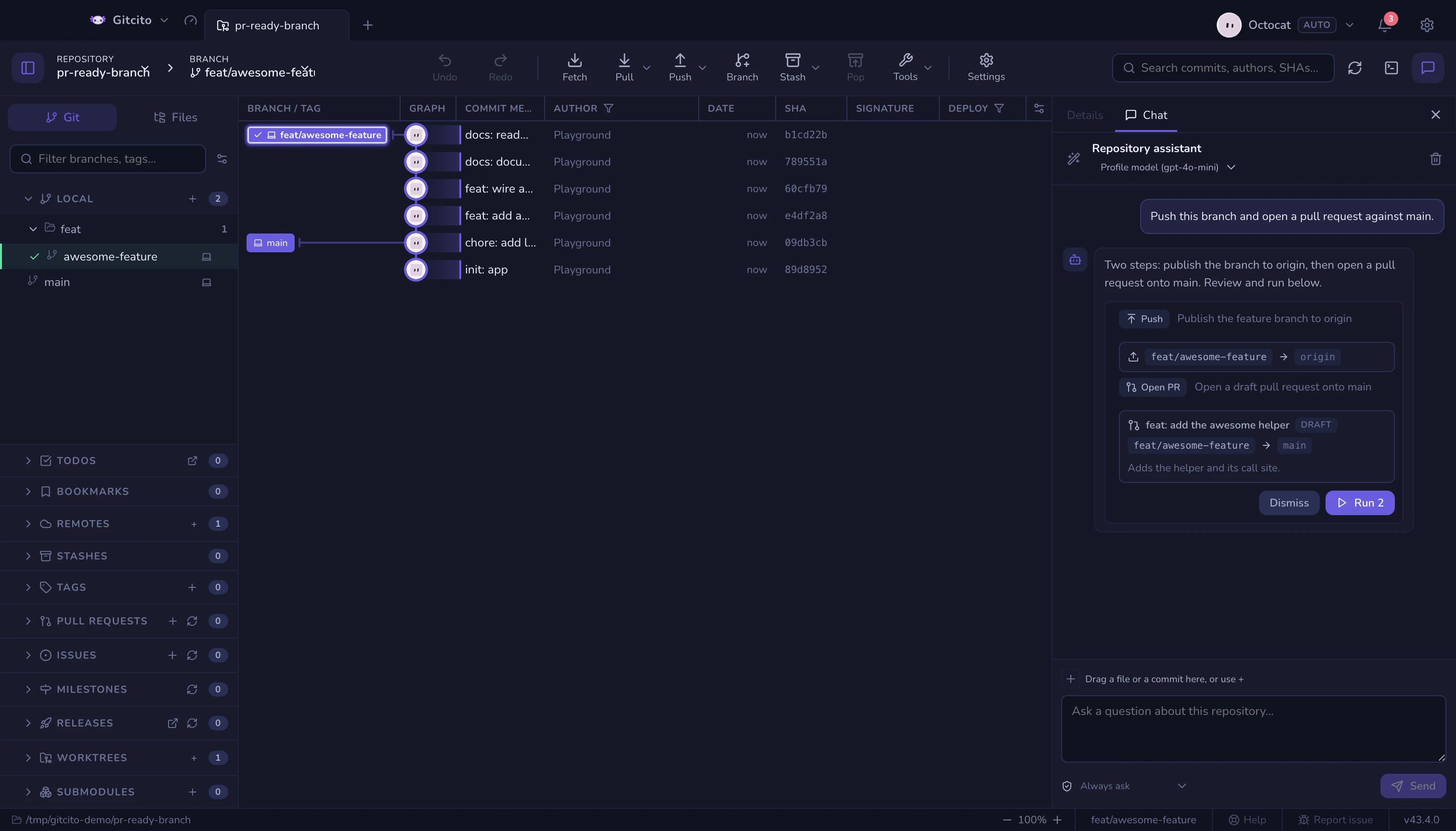
A proposed push clears the same guards the toolbar's push does before anything runs — the protected-branch confirm, the warning about publishing credential-looking files, and the repository's own pre-push checklist. They are dialogs, so they are answered before the plan starts rather than from inside it.
Undoing a plan
A plan is approved as a batch, so it is undone as a batch. Before the first action that can change anything, Gitcito records where the branch was and takes a snapshot of the working tree; a finished card then offers Undo plan. It moves the branch back to that commit and restores the tree, which throws away whatever the plan produced, so it confirms first and names the commit it is returning to. Pull requests the plan opened stay open — a remote is not something a local snapshot can take back.
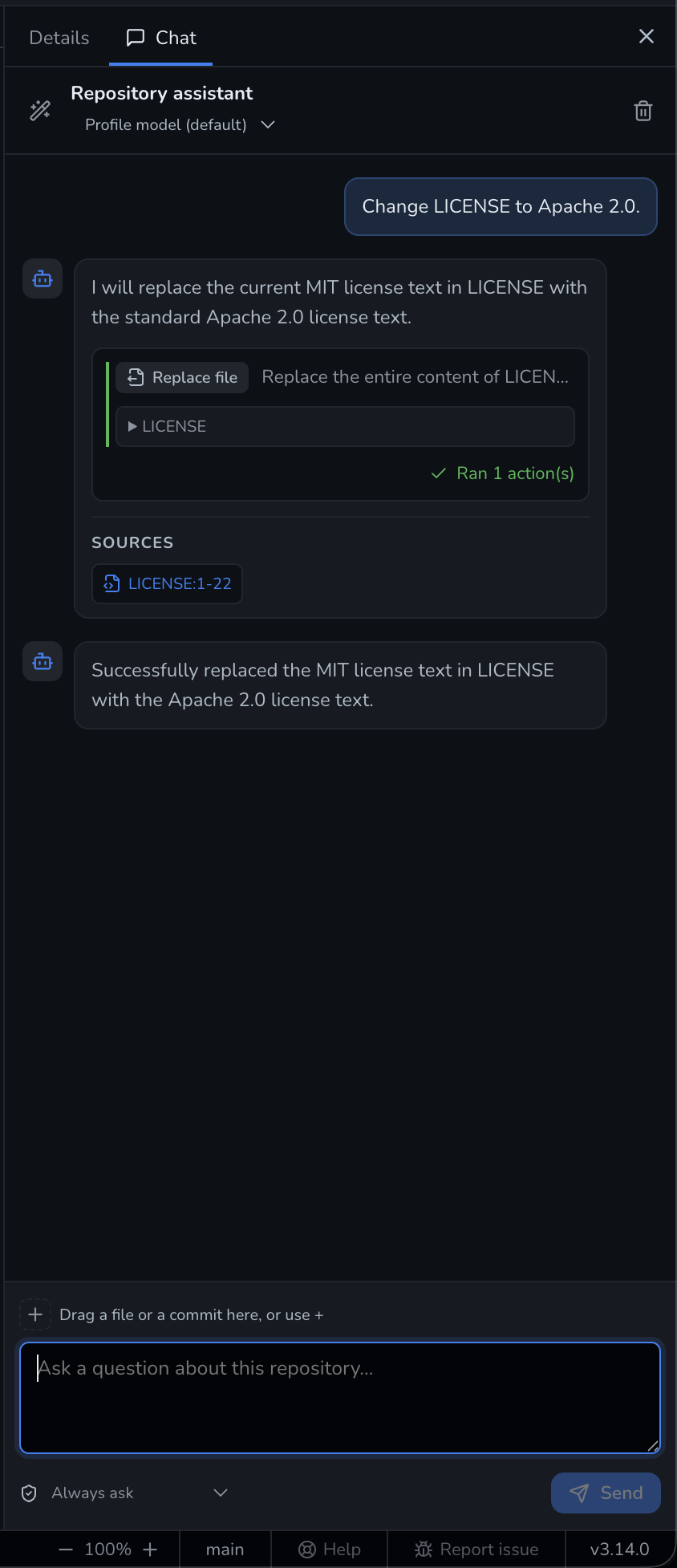
With Auto-run all actions, a valid file change runs immediately and the card records the completed action:
With Always ask, the same kind of change remains pending until you choose Run or Dismiss:
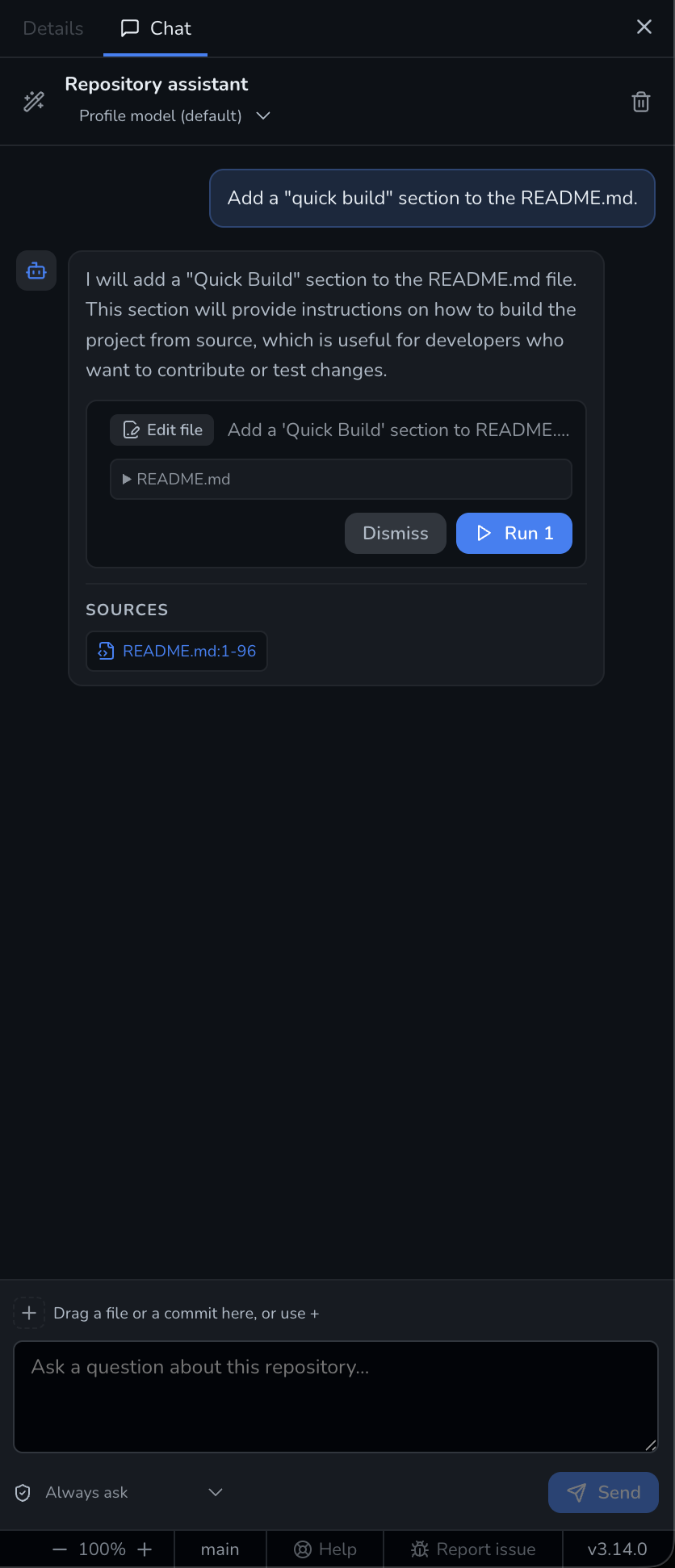
The complete file batch is rechecked before the first write and rolls back if one step fails. Before a commit, Gitcito also verifies that something is staged. The card marks every completed, failed, and skipped row and keeps partial counts. Afterward, a separate action-free model call summarizes the actual result; if that summary fails, the card remains the authoritative record.
Approval modes
The shield dropdown under the composer (also in Settings → AI → Repository chat) decides how a card runs:
| Mode | Runs |
|---|---|
| Always ask | Nothing until you press Run on the card |
| Auto-run safe actions | Proposals made only of reversible bookkeeping — stage, unstage, ignore, branch, tag — run on arrival; anything else waits for the button |
| Auto-run all actions | File changes and ordinary Git actions run on arrival; destructive Git operations still ask |
A proposal that would discard uncommitted changes always asks first, in every mode, and the confirmation names the files that would be lost. The card reports what actually happened — how many actions ran, or the error that stopped them — and the assistant is told the outcome, so a follow-up question knows whether its plan was executed or dismissed.
Fixing errors with the assistant
When a git operation fails and AI chat is available, the error toast grows a sparkle button: it opens the chat with the failure pasted into the composer, so "why did this fail and what do I do" is one click. The draft is editable — nothing is sent until you press Send.
What it refuses
- Files that look like secrets are never read, pinned or not — the chip is reported back as skipped, with the reason. Pinning is not a way around secret masking.
- Binaries and files over 512 KB from outside the repository are skipped the same way. Inside the repository the usual readable-source rules apply.
- The model never writes directly. It returns structured proposals; Gitcito validates them, computes the diff, and runs them only under your approval rules. Destructive Git work always confirms. With action proposals off, chat does not even propose changes.
- Conversations live in memory only. Switching repositories keeps each thread separate; quitting Gitcito discards them.
Opening it
| Keys | Does |
|---|---|
| The speech-bubble button in the toolbar | Toggles the Chat tab |
| ⌘⌥B / Ctrl+Alt+B | Toggles the whole right panel |
| Enter | Sends the message |
| Shift+Enter | Inserts a new line |
See Keyboard & shortcuts for the rest, including how to rebind the panel toggles.
See also: AI features · Security & secrets · Repo wiki