
Workspaces, tabs & groups
Three levels, from loosest to tightest.
Tabs
One repository, one tab. Use ⌘T / Ctrl+T to open the new-tab picker and ⌘W / Ctrl+W to close the active tab. You can also drag to reorder, middle-click to close, or press ⌘⇧T to reopen the last one you closed. Right-click a repository tab (or a chip inside a group) for the repository context menu — alias, worktrees, GitHub, terminal, reveal, editor, and Close this repo and Close others at the bottom (a chip in a group offers remove instead). Close the last tab and ⌘W closes the window instead. A dot on the tab means uncommitted work; a different one means conflicts.
If a close warning appears, Escape always cancels. Enter confirms only when the tab is clean — when there are uncommitted changes or conflicts the warning deliberately makes you reach for the button, so a stray keypress after ⌘W cannot close work you were still holding.
Going to a repository
With ten or more repositories open, finding one in the strip means scrolling, ⌘1–⌘9 stop at the ninth tab, and the command palette mixes open repositories in with every action. Press ⌘J / Ctrl+J (or View → Go to repository…) and type a few letters of its name, folder or branch, then Enter.
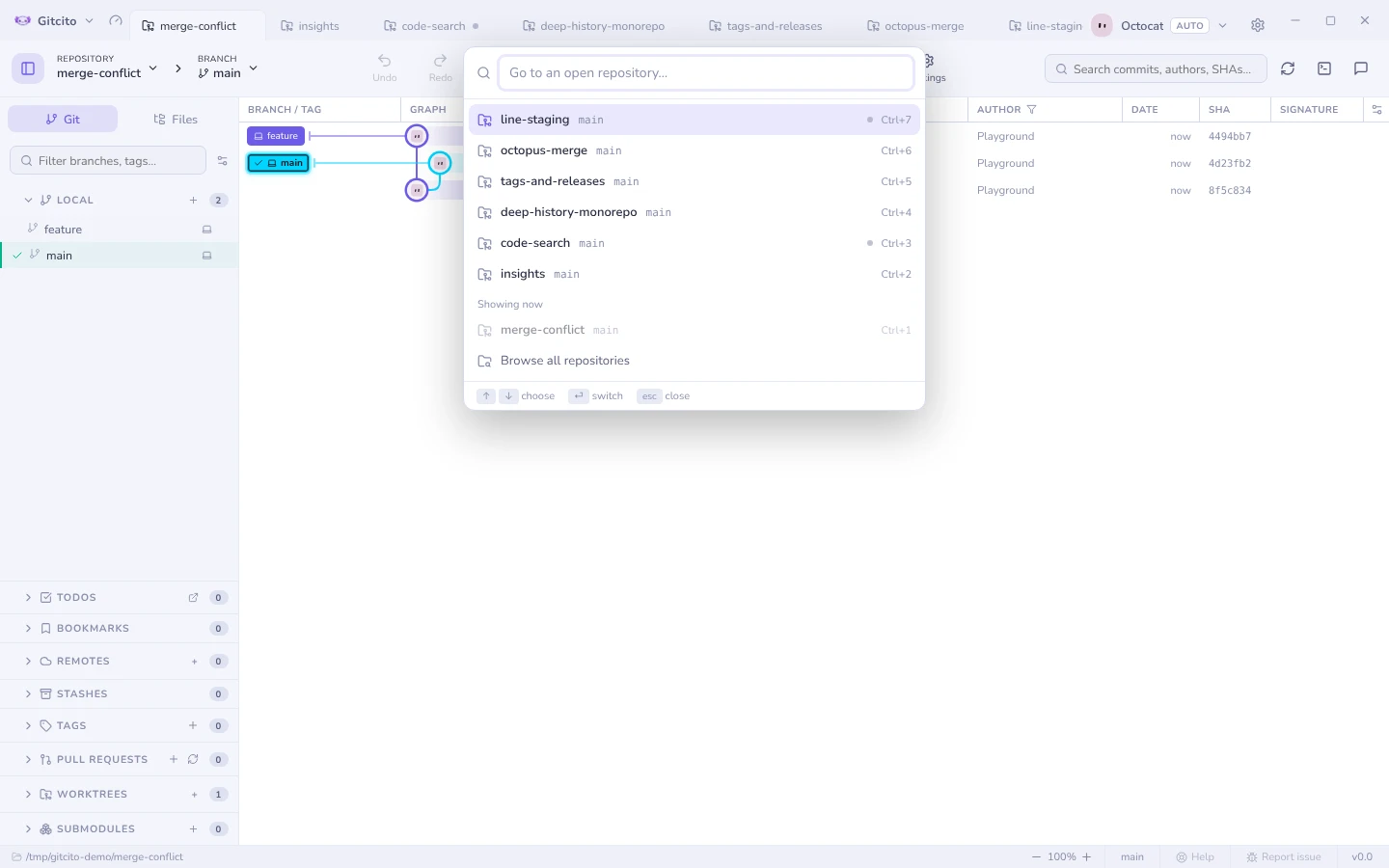
The list holds only open repositories, group members included, in the order you last looked at them. The one you just left is first, so ⌘J Enter takes you back to it. Each row carries what its tab shows: the branch, the uncommitted-work or conflict dot, the group it lives in, and its ⌘1–⌘9 key when it has one. The repository on screen sits dimmed at the bottom. Nothing dims behind the switcher; a click outside or Esc closes it.
When nothing open matches, the last row, Find in all repositories, carries your search to the Repositories page. The shortcut is rebindable in Settings → Shortcuts.
Limits: the order is remembered for this session only, so after a relaunch it starts from tab order. A repository open in two tabs is listed once, at its first tab. Repositories in other workspaces are not listed — switch workspace first, or use the Repositories page.
Groups
Bundle related repositories into a named, colour-coded group tab. Inside a group you get a second row with one chip per repository, and the group itself can Fetch all or Pull all in one go.
To start one, right-click a repository tab → New group…: the tab becomes a group holding that repository, where it stood. Once a group exists the same menu reads Add to group →, listing the open groups. Dragging a repository tab onto a group chip does the same.
New group… asks for a name and a colour together. The colour starts on one no open group is wearing yet, picked at random, so groups do not all begin the same.

To recolour a group, right-click it: the ten colours sit in the menu as a row of dots, with a ring around the current one, and one click applies it. Custom color… below the row opens a picker for any other colour. Folders and the sections on the Repositories page use the same row.
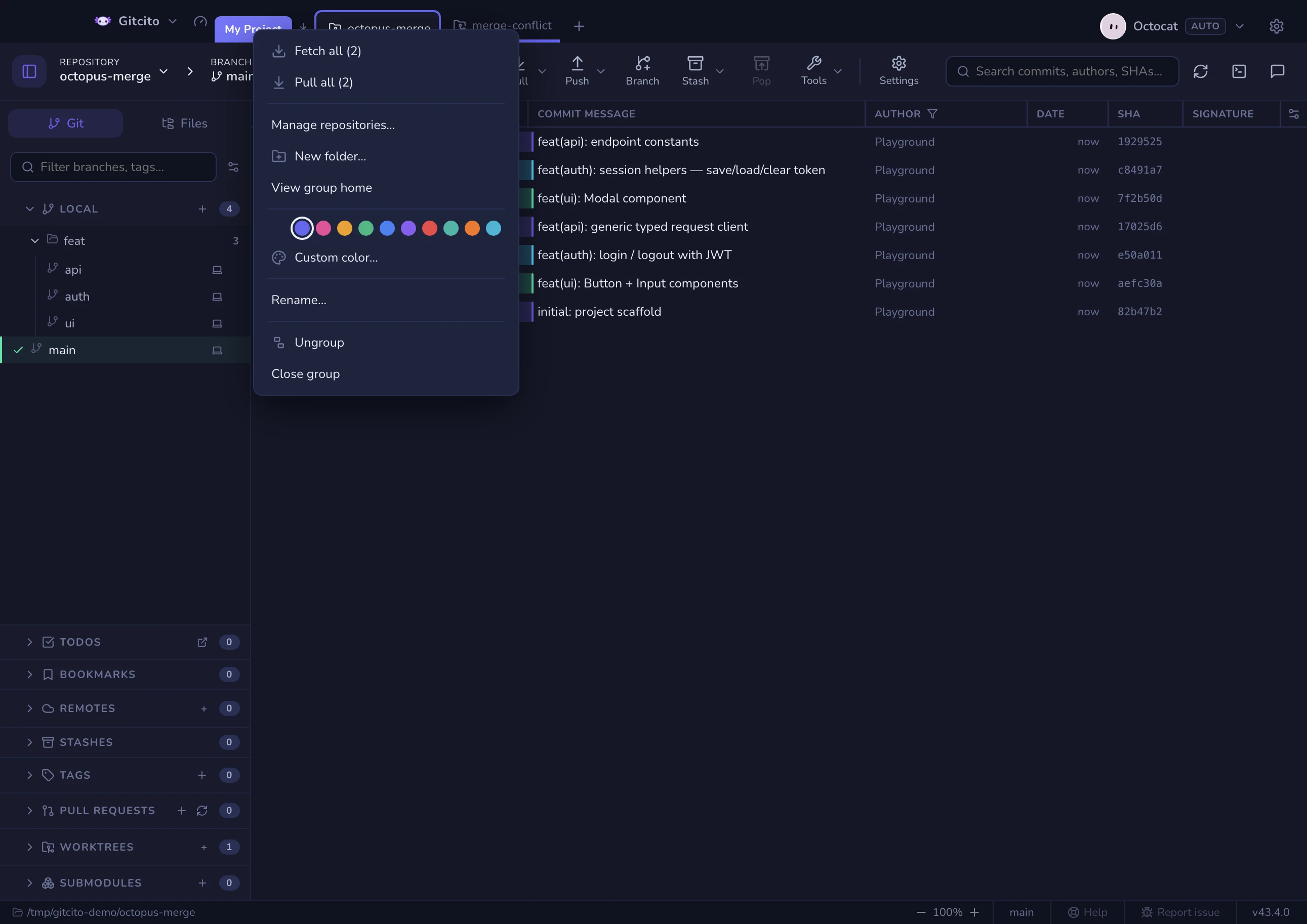
To dissolve a group, right-click it → Ungroup. Each repository becomes an ordinary tab where the group stood, keeping any pages it had open. Close group closes the group and every repository in it instead. Folders do not survive an Ungroup: they only exist inside a group.
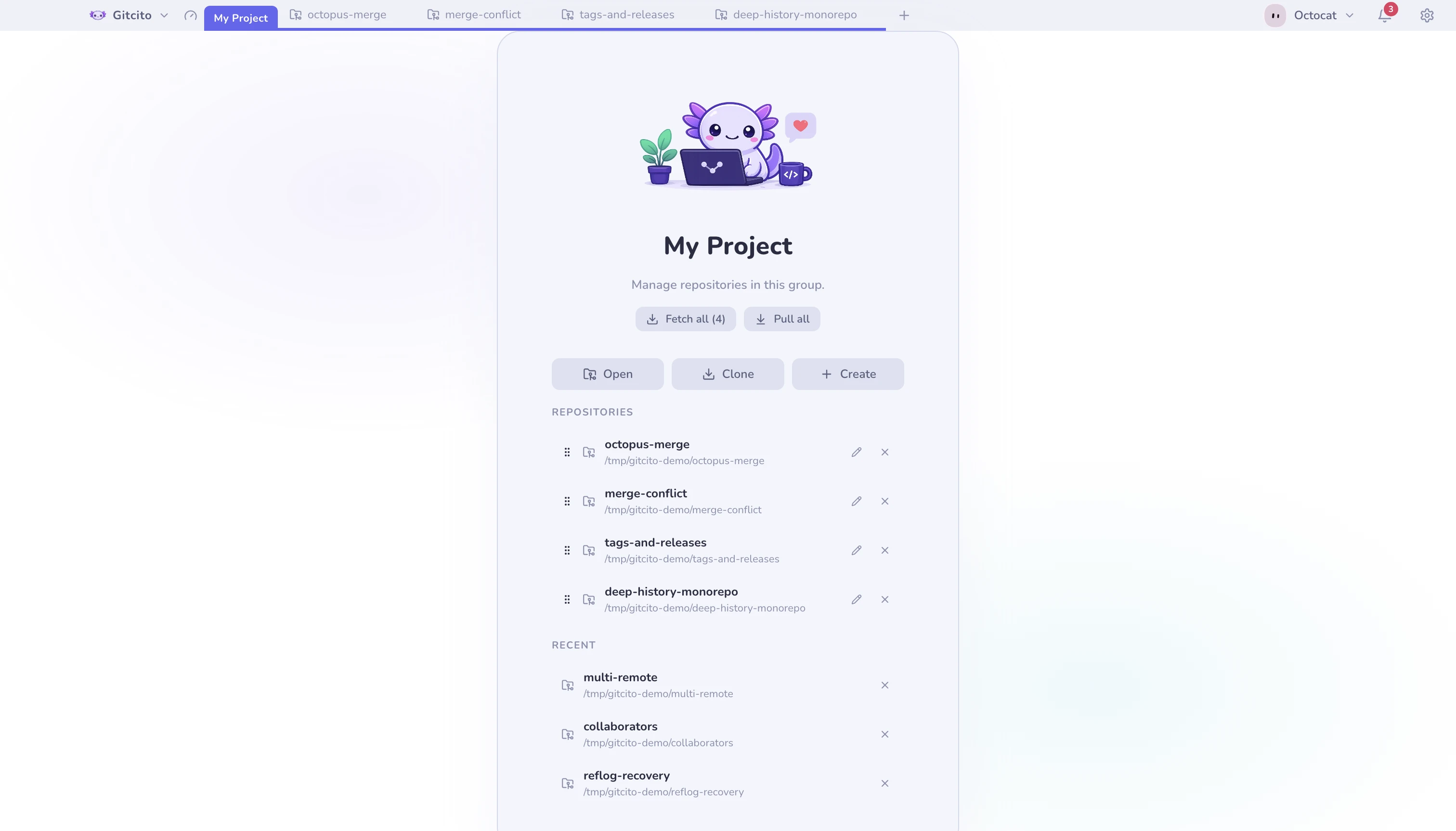
Groups can hold folders, nested to any depth: right-click the group → New folder…, then drag repositories onto a folder chip. Each folder takes a colour, collapses to a counted chip, aggregates the status dots of everything inside it, and can fetch or pull its whole subtree.
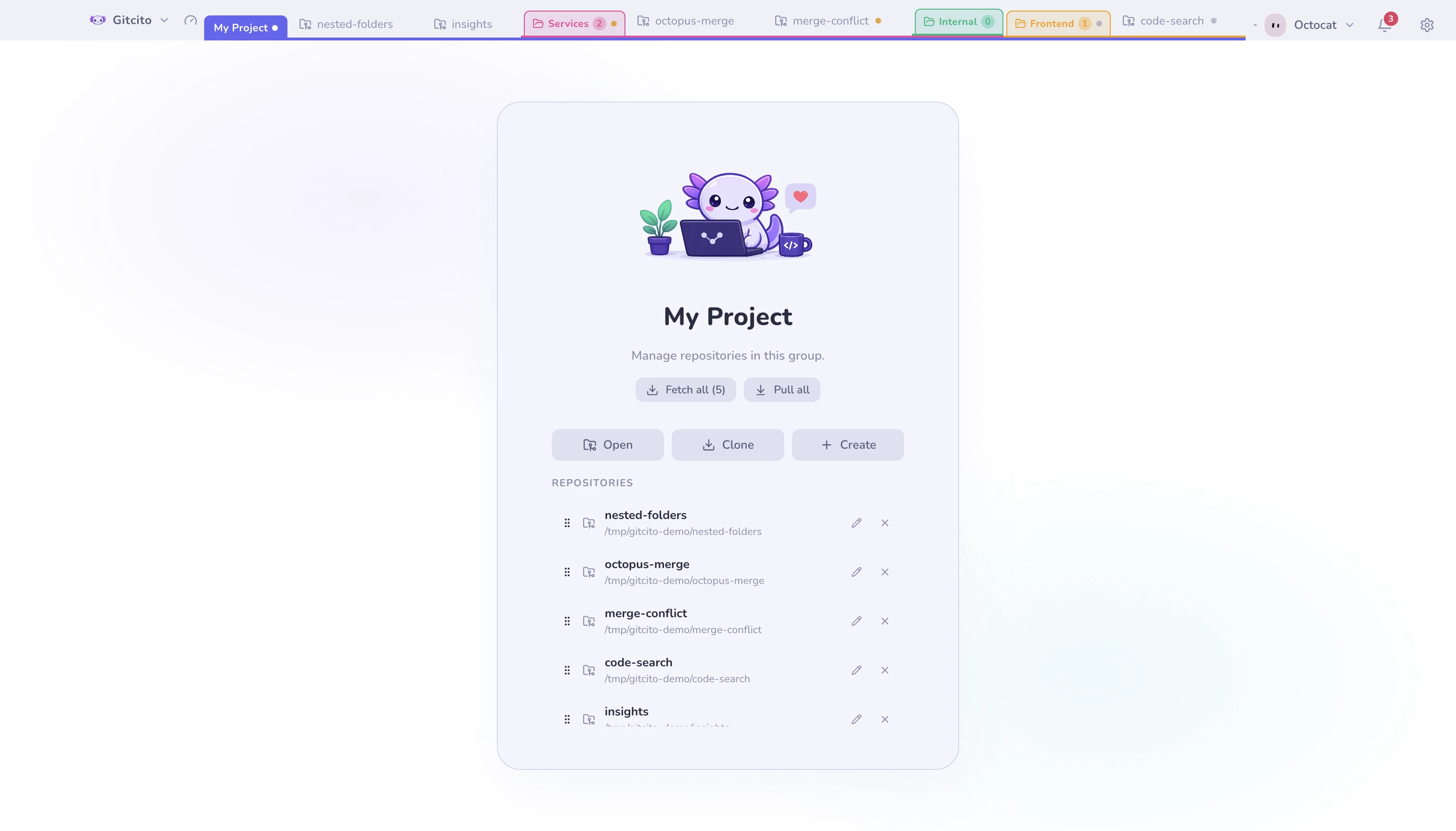
Folders only organise. Deleting one lifts its repositories to the parent — it never closes a repository.
Pages that belong to a repository
Some pages are not their own thing: a repository's wiki, its insights, the dev tools a launch session announced. They do not take a tab — they appear as small icons on the repository itself.
- Click an icon to show that page. Click it again — or click the repository's name — to come back to the repository. While a page is showing, the name grows a pointer cursor and a small pill on hover: it is the way back.
- Hover an icon for the ✕ that closes just that page.
- Inside a group, the icons sit on the chip of the repository they belong to, and only while that repository is the selected one. Picking another repo in the group shows that repository, not its neighbour's tool.
- Re-opening the same page lights the icon it already has instead of adding a second one.
A repository that is not open anywhere has no icon to carry, so a page for it opens as a tab of its own instead — opening something always opens something.
Workspaces
A workspace is a whole saved tab strip. Switching swaps every tab at once:
Work and Personal stop stepping on each other.
The workspace name sits top-left, next to the Gitcito mark. Click it to switch, create, rename, reorder or delete. Next to it is the gauge that opens Mission control for the workspace you are in.
See also: Mission control · The command line