
Getting started
Gitcito opens a folder and shows you its history. Nothing is written to your repository until you ask for it.
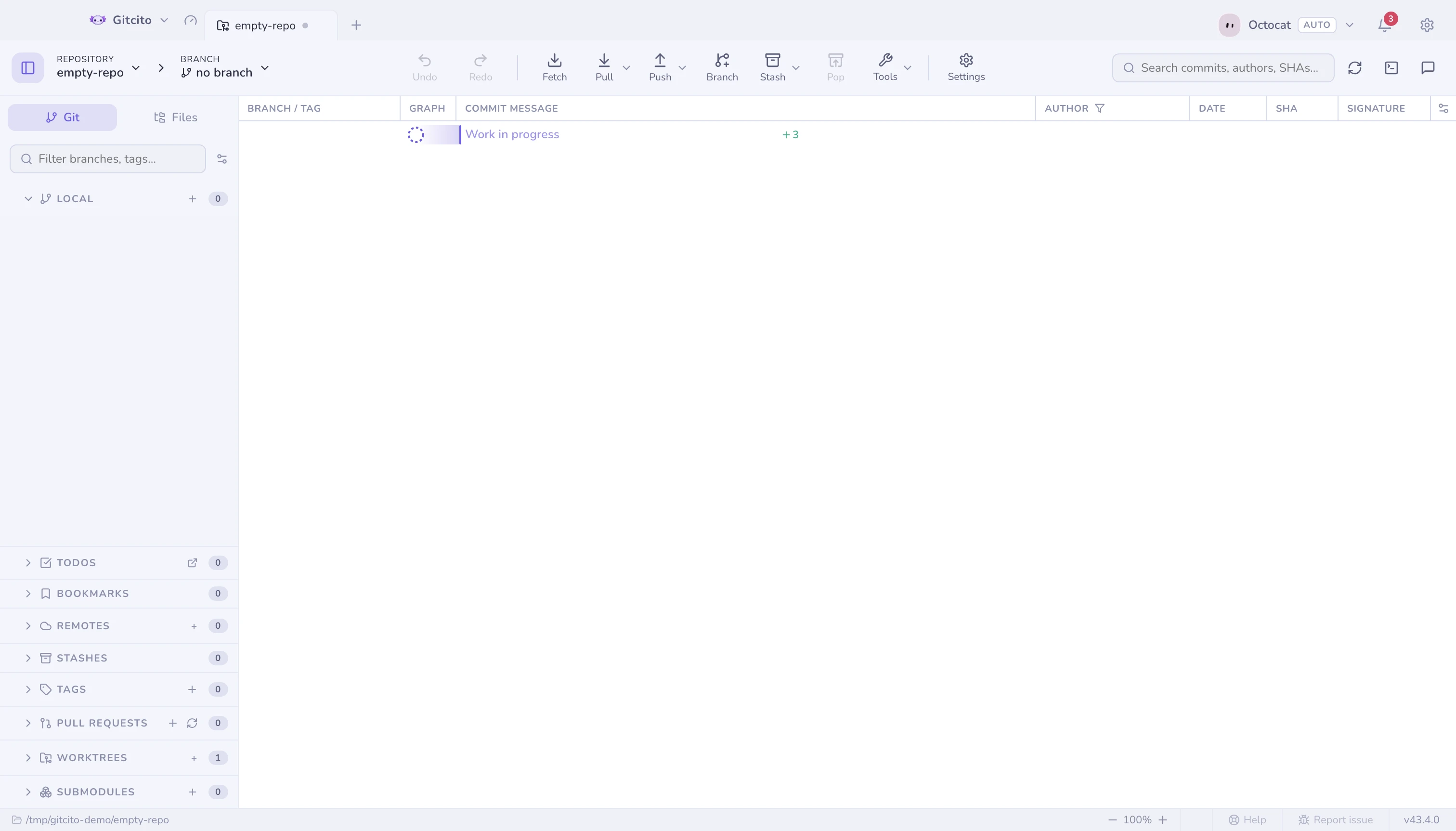
Open a repository
- Drag a folder onto the window, or use Open repository on the welcome screen. The picker takes several folders at once: ⌘-click or Shift-click to select them, and each opens in its own tab (or joins the group you opened it from). In a selection of several, a repository that is already open, or a folder that is not a Git repository, is skipped and named in a message, so the others still open. The macOS picker cannot grey out open repositories in advance: Electron does not expose the panel's per-folder hook, so the check happens after you click Open.
- Clone one from a URL or straight from your host — see cloning for the options that make a huge repository quick to clone.
- From a terminal,
gitcito .opens the current folder in the running app — see the command line. - A single folder that is not a Git repository yet still opens, offering to initialise it.
The three panes
| Pane | What it holds |
|---|---|
| Left | Branches, remotes, tags, stashes, worktrees — and the Files tab for the working tree |
| Middle | The commit graph, and whatever you select from it |
| Right | The commit composer, or the details of the selected commit |
Finding everything else
Two routes, and they lead to the same places:
⌘K(Ctrl+K) — the command palette. Type what you want; it also jumps to branches, commits and files.- Tools in the toolbar — the same repository-scoped set as a menu, with the long tail folded into groups so it stays readable.
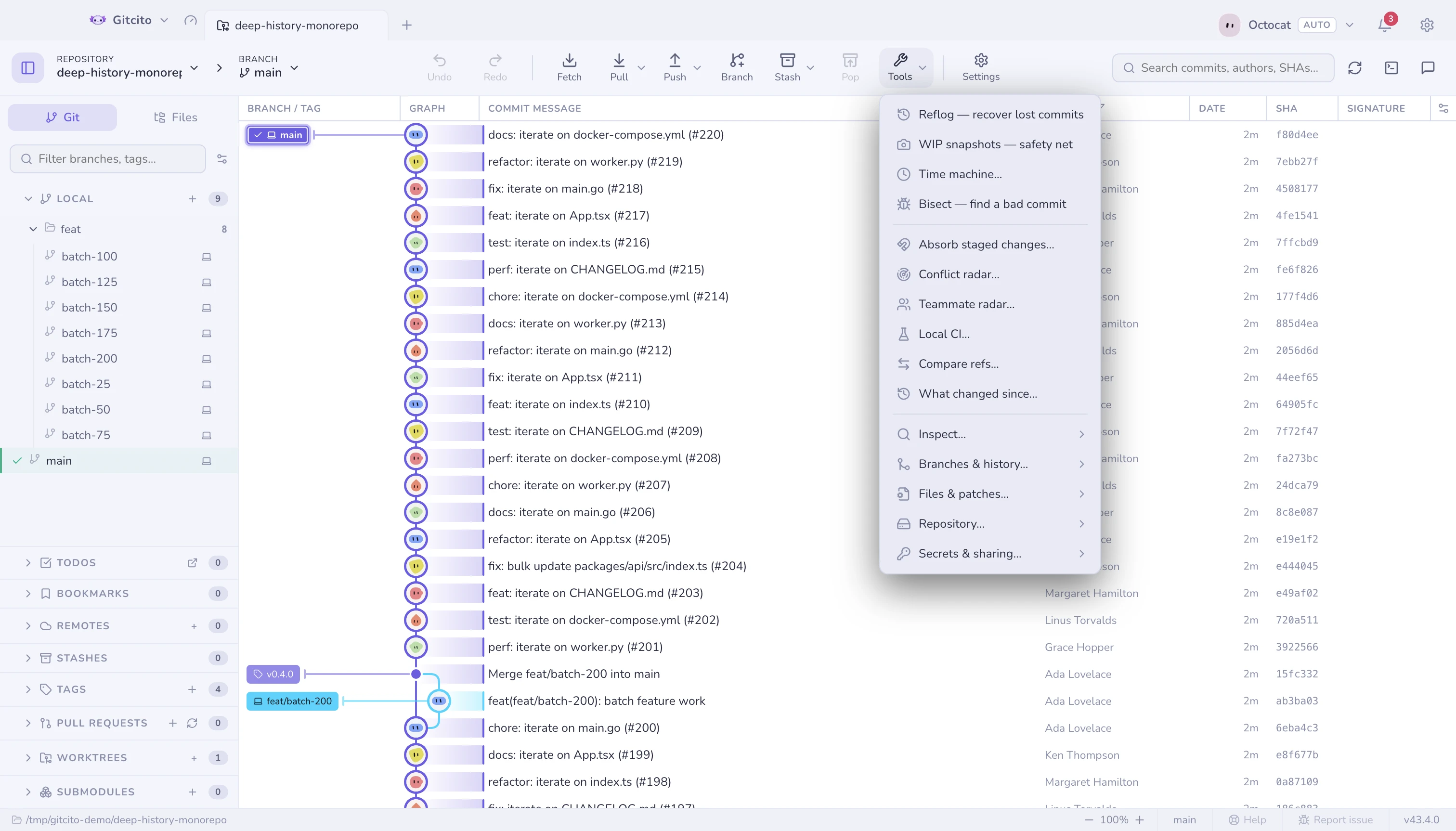
When the window gets narrow the action bar stops competing for space: the buttons that no longer fit fold into a More dropdown at its end, in bar order and with their own submenus intact. Widen the window and they come back out.
Anything reachable by one is reachable by the other, so there is nothing that only power users can find.
Your first commit
- Edit a file. It appears under Unstaged.
- Stage it — the whole file, a hunk, or single lines.
- Write a message and press Commit.
Everything else in Gitcito is optional.